
How to Take a Screenshot on KaiOS?
KaiOS screenshot guide with the star and hash shortcut, version/device compatibility, Gallery, sharing and troubleshooting.
Fastest method: *#
What happens: Takes a screenshot on supported KaiOS devices/versions.
Saved to: Usually available through Gallery or the phone’s image storage.
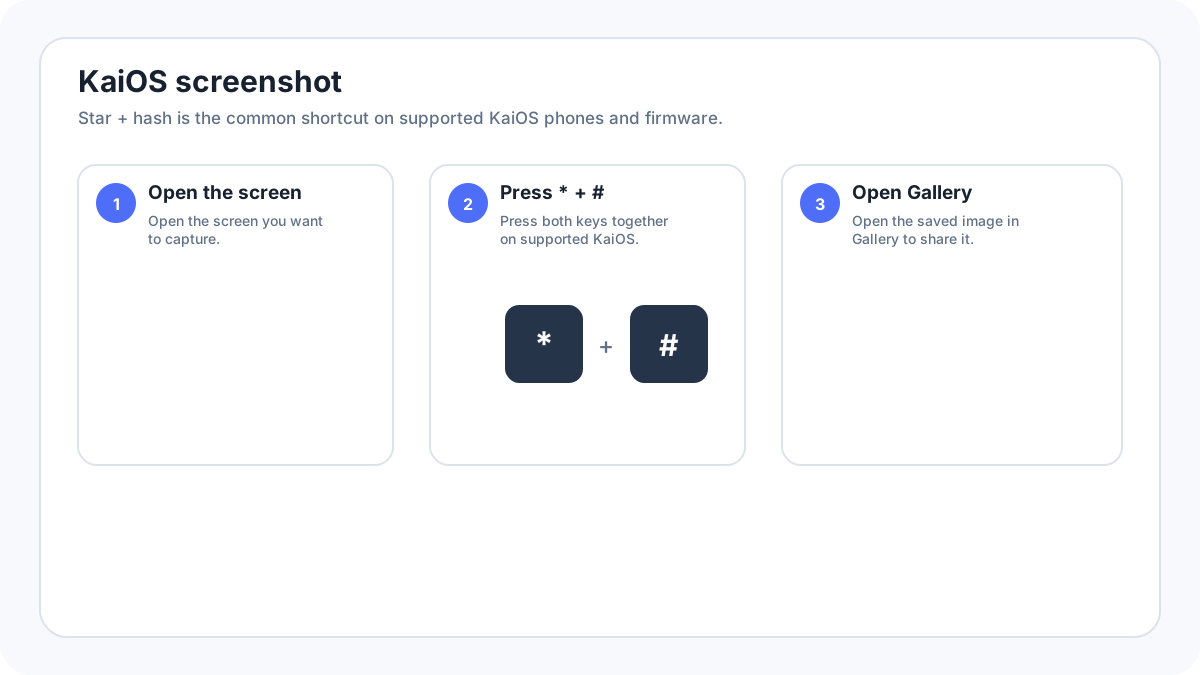
How to take a screenshot on a KaiOS phone?
- Open the screen you want to save.
- Press the * (star) and # (hash) keys together.
- Wait for the screenshot confirmation/animation.
- Open Gallery or the device’s image section to locate the capture.
Which KaiOS phones support screenshots?
Screenshot behavior depends on the KaiOS version and the device firmware supplied by the manufacturer or carrier. Some popular KaiOS feature phones support the star and hash shortcut, but an older firmware build or a phone that only looks similar to a KaiOS device may not. Check Settings › Device information/about to confirm the operating system and version.
Why *# may not work?
- The phone may run an older KaiOS build without the same screenshot behavior.
- The manufacturer/carrier firmware may change the shortcut.
- The current app may use a secure display setting that prevents screenshots.
- The keypad may not register both keys when pressed together; try a deliberate simultaneous press.
- The device may be another feature phone operating system rather than KaiOS.
Where KaiOS screenshots are saved?
Supported devices normally make captures available through Gallery/image storage. Because storage paths and SD card options vary by handset, use Gallery first rather than assuming a desktop style folder path.
Sharing a KaiOS screenshot
Open the image in Gallery and use the sharing options offered by the phone. Availability depends on installed apps, data connectivity and device software. If the screenshot is evidence or contains private information, inspect it before forwarding because feature phone editors may have fewer redaction tools than modern smartphones.
KaiOS screenshot privacy and secure apps
KaiOS developer documentation includes secure display behavior that applications can use to disable screenshots. If one app cannot be captured but the home screen can, treat the restriction as intentional rather than trying to defeat it.
Verification source: KaiOS Developer Documentation, Security features. Interface wording can vary slightly by OS build, manufacturer and keyboard layout.