
How to Take a Scrolling Screenshot on Windows?
Capture long webpages, documents and app content on Windows without unreliable manual scrolling.
Windows does not provide one universal built in shortcut that automatically scrolls every desktop app and stitches it into one image. The right method depends on whether you are capturing a webpage, document, settings panel or ordinary application.
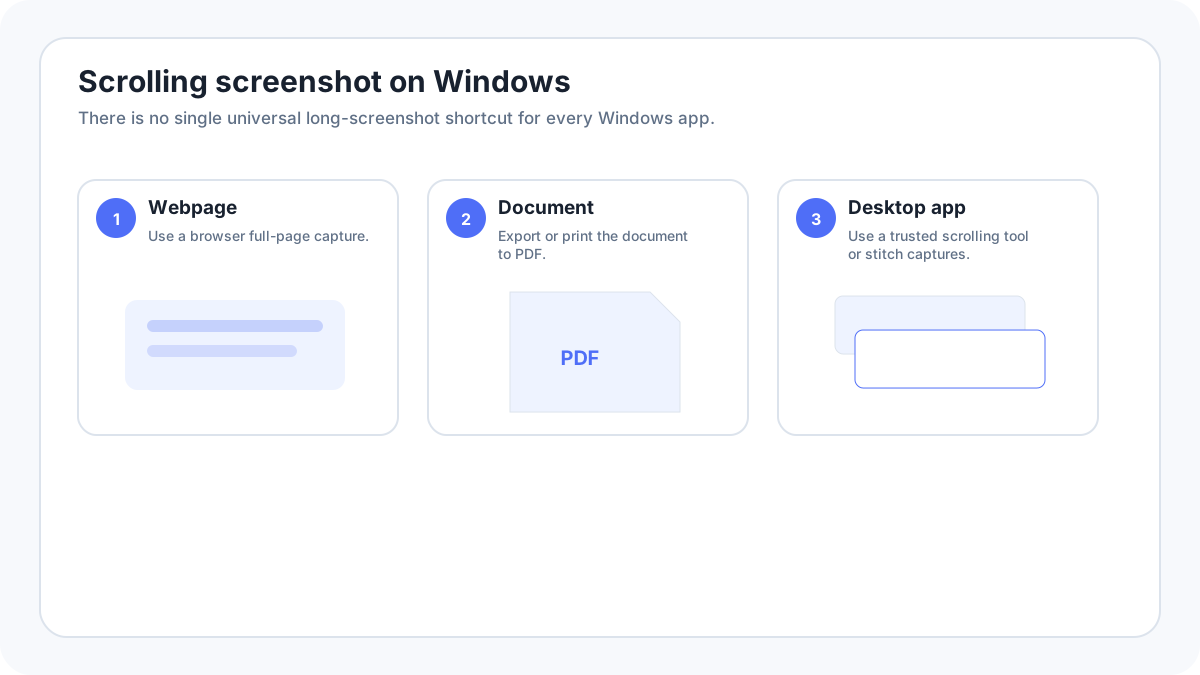
For a webpage: use the browser first
A browser full page feature is usually more reliable than trying to scroll Windows Snipping Tool. Firefox has a built in Save full page screenshot command. Chromium based browsers can expose page capture options through built in menus or developer tools depending on the version. Browser capture can avoid duplicated sticky headers that appear in manual stitched screenshots.
For a document: export or print instead of screenshotting
If the content is a PDF, Word document, spreadsheet or printable report, use Save/Export/Print to PDF when possible. A document export preserves text and page structure better than a very tall raster screenshot.
For a desktop application
Snipping Tool captures what is visible; it does not automatically scroll every app. If the application has no export function, use a reputable screenshot utility with scrolling window support, or take overlapping screenshots and combine them manually. Test the result for duplicated toolbars, missing rows or skipped content.
Manual stitching method
- Capture the first visible section with WindowsShiftS.
- Scroll down while keeping a small overlap with the previous capture.
- Capture the next section.
- Repeat until finished.
- Combine the images in an editor using the overlap as the alignment reference.
- Crop the repeated region and inspect the final image at 100% zoom.
Common scrolling capture problems
- Sticky headers repeat in every section.
- Lazy loaded images appear blank because they had not rendered yet.
- Infinite feeds add or reorder content while you scroll.
- Animations change between captures.
- A remote desktop or virtualized app can redraw during capture.
- Very long images become difficult to read or share.