
How to Take a Screenshot on Android Without Buttons?
No button Android screenshot methods including Recent Apps, Quick Settings, gestures and accessibility alternatives.
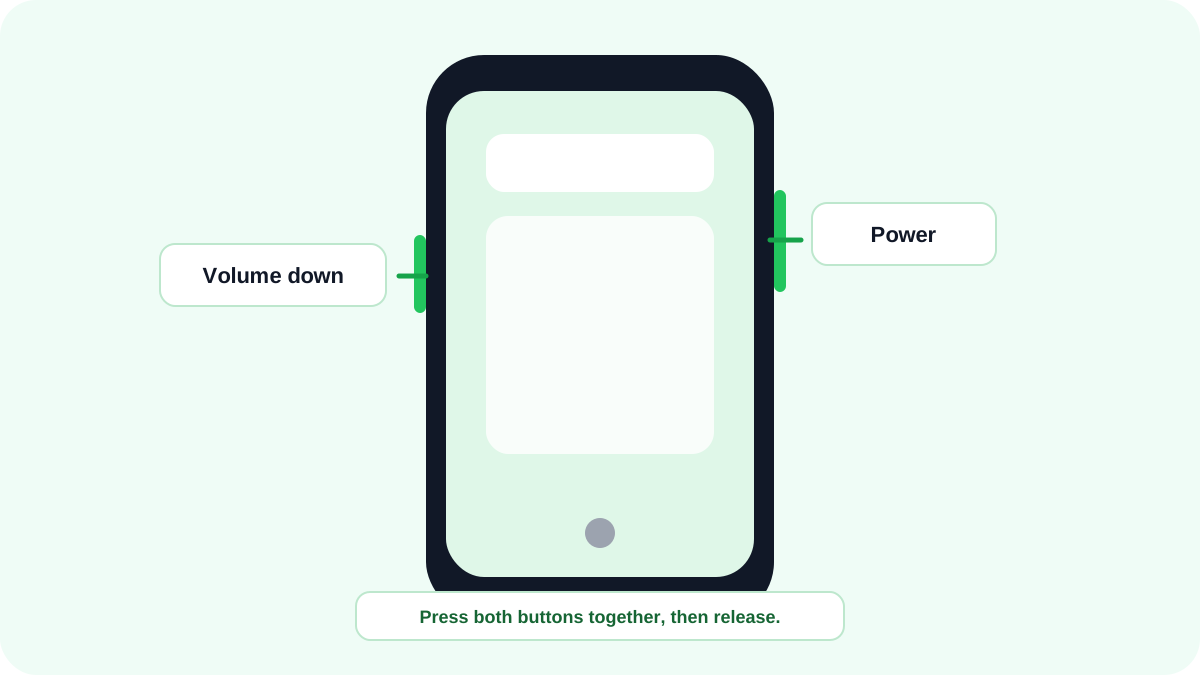
A broken or difficult to press Power/Volume key does not always stop Android screenshots. The available software method depends on the phone manufacturer and Android interface.
Google Pixel and Recent Apps
With supported Pixel navigation, open Recent Apps/Overview, select the app card and use the Screenshot action when it is offered. This captures the app view without pressing hardware buttons.
Quick Settings and screenshot tiles
Some manufacturers include a Screenshot tile in Quick Settings. Swipe down from the top, expand Quick Settings and look for Screenshot, Screen capture or a similar tile. Use Edit if the tile exists but is not currently visible.
Manufacturer gestures
- Samsung: Palm swipe to capture on supported Galaxy devices.
- Motorola: three finger screenshot gesture on supported models.
- Xiaomi/Redmi/POCO: three finger downward swipe when enabled.
- OnePlus and other brands can expose three finger/gesture controls depending on software version.
Accessibility methods
If hardware buttons are difficult because of a disability or damaged device, search Settings for Accessibility Menu, Assistant Menu, floating accessibility controls or screenshot actions offered by the manufacturer.
If no software method appears
Use Settings search for “screenshot”. If the phone exposes no button free option, connect/repair the hardware controls or use a manufacturer supported accessibility tool rather than installing unknown screen capture apps with broad permissions.
When a button is broken or difficult to press?
Prefer an operating system or manufacturer accessibility method over an unknown screen capture app that requests broad permissions. If a gesture is unreliable, add a software shortcut such as a Quick Settings tile, accessibility menu or supported floating assistant so you have a repeatable method.
Why no button methods can disappear?
- The manufacturer changed the gesture between software versions.
- A Quick Settings tile exists but has not been added to the active panel.
- Recent Apps/Overview capture is available only on certain launchers or navigation modes.
- A managed device policy or secure app blocks screen capture.
- Accessibility or gesture features were disabled after a settings reset.
Verify the capture before sharing
Open the finished screenshot at full size and check the edges. Software gestures can capture a different app state than expected if a panel, assistant or recent apps screen was still visible. Crop only after confirming that the important information is present.