
How to Take a Full Page Screenshot on iPhone?
Capture a complete webpage or supported document on iPhone with Full Page, then crop, save as an image or PDF and troubleshoot missing controls.
A full page screenshot captures content beyond the visible iPhone screen. It is useful for a long webpage, document or other supported scrollable content because you do not have to take several overlapping screenshots by hand.
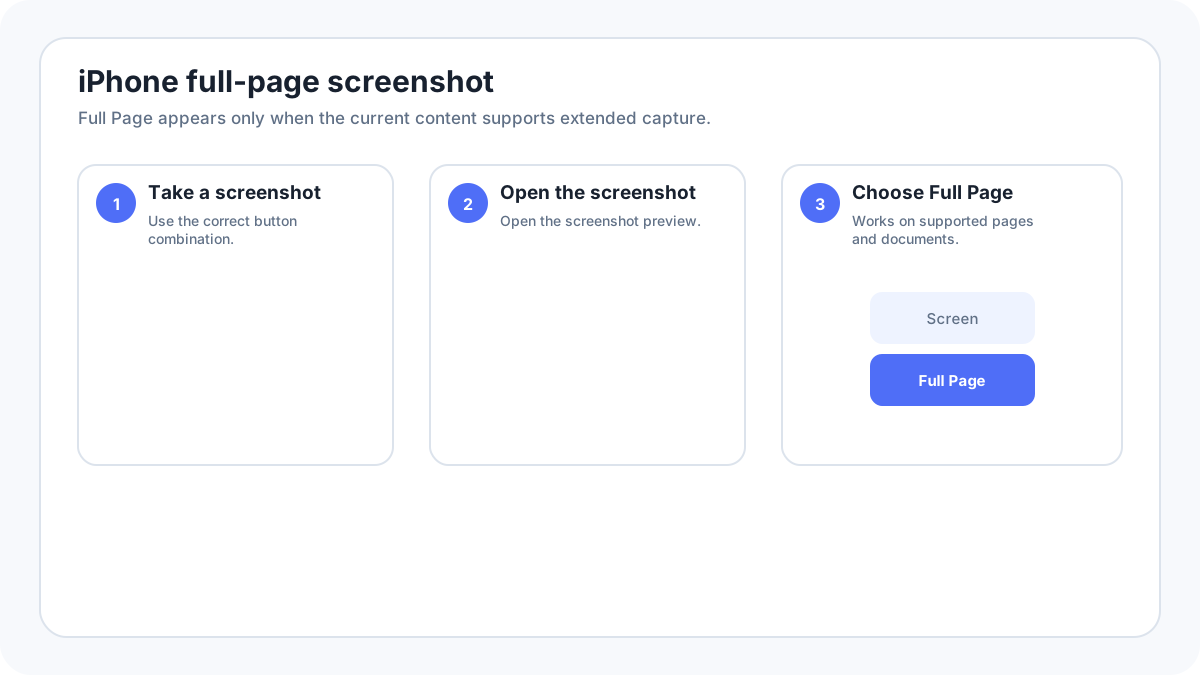
How do you take a full page screenshot?
- Open a long webpage or supported document.
- Take a normal screenshot using the correct buttons for your iPhone, or use an accessibility method.
- Open the screenshot controls when they appear.
- Choose Full Page.
- Use the page preview to review the entire capture.
- Crop the beginning or end if you do not need the whole page.
- Choose the save or share option that fits your workflow.
Can you save a full page screenshot as an image or PDF?
Current Apple guidance allows supported full page captures to be saved in different ways depending on the interface. You can save a full page result to Photos when the image option is available, or save a PDF to Files. Choose the format based on where you need to upload, print or share the result.
Why is Full Page missing?
- The current app or screen does not expose full page capture.
- The content is not actually scrollable.
- A protected or custom rendered surface restricts extended capture.
- The screenshot interface differs from an older tutorial because iOS has changed.
- The content is inside a component that only renders part of the page at a time.
How do you crop a long iPhone screenshot?
Open the full page result and use the crop controls to remove parts you do not need. For a very long page, inspect the preview before sharing so that hidden account details, email addresses, contact information or private messages farther down the page are not accidentally included.
Full Page vs several normal screenshots
Use Full Page when the app supports it and you need one continuous document. Use several normal screenshots when the app does not support extended capture, when you need only a few separate steps, or when a long single image would become difficult to read on the destination where you plan to share it.
What if the page changes while you capture it?
Dynamic pages, chat feeds and sites that load content only while scrolling can produce incomplete or changing results. After saving, review the beginning, middle and end of the capture. If accuracy matters, keep the original page URL and avoid editing the screenshot in a way that changes its meaning.
Privacy checklist before sharing
- Review the entire long capture, not only the visible first screen.
- Crop unrelated tabs, account panels or messages when possible.
- Use solid redaction for highly sensitive information.
- Keep an untouched original when the image is being used as documentation or evidence.
FAQ
Is a full page screenshot the same as a scrolling screenshot?
They describe the same general goal: capturing content beyond the visible screen. On iPhone, Apple calls the supported built in workflow Full Page.
Why does Full Page work in Safari but not another app?
The app has to expose compatible extended content to the screenshot system. Support is not universal.
Related iPhone guides
Verification source: Apple Support: Take a screenshot on iPhone. Interface wording can vary slightly by OS build, manufacturer and keyboard layout.