
How to Take a Screenshot on iPhone?
Complete iPhone screenshot guide for Face ID, Home button models, iOS 26, full page captures, no button methods, editing and troubleshooting.
Fastest method: Face ID iPhone: SideVolume Up
What happens: Captures the screen and opens the screenshot workflow.
Saved to: Normal screenshots are saved in Photos unless you choose another destination.
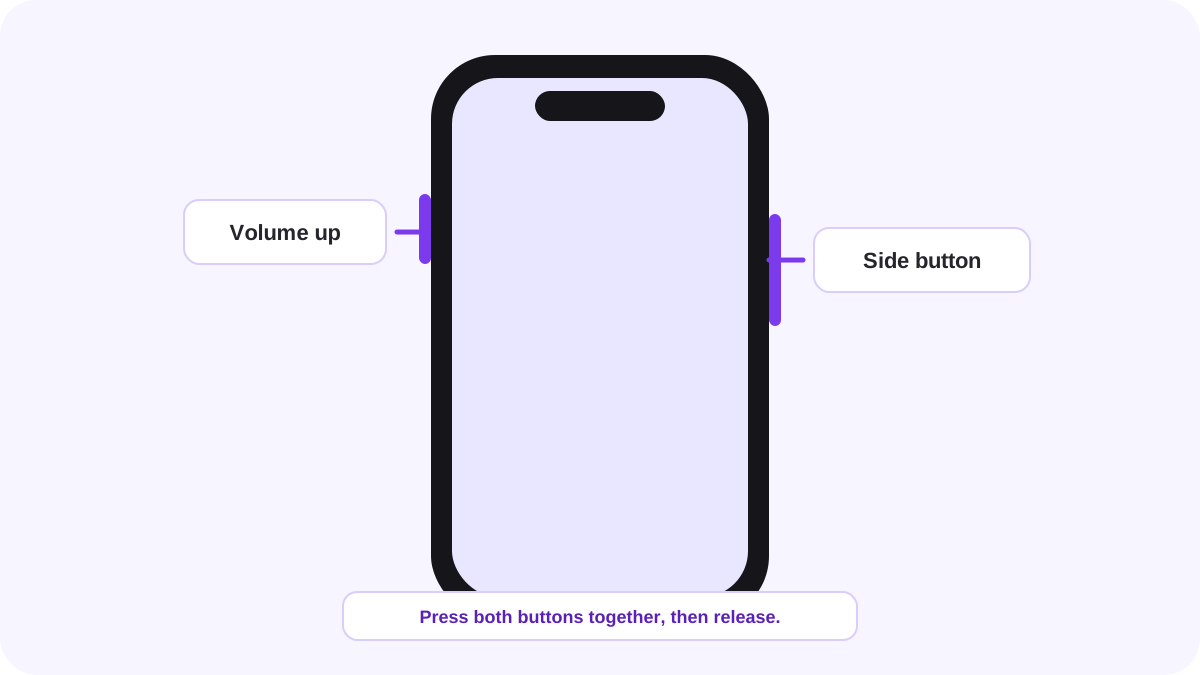
Choose the correct iPhone button combination
| iPhone type | Buttons |
|---|---|
| Face ID iPhone | SideVolume Up |
| Touch ID with Side button | SideHome |
| Older Touch ID with Top button | TopHome |
How to screenshot on an iPhone with Face ID?
- Open the screen you want to capture.
- Press the Side button and Volume Up at the same time.
- Release both buttons quickly. Do not keep holding them.
- Use the screenshot interface to crop, mark up, share, delete or save.
What changed in iOS 26?
Apple’s current support documentation says that in iOS 26 the screenshot opens with editing and sharing tools automatically. In iOS 18 and earlier, a temporary thumbnail appears in the lower left corner. This is why older screenshots/tutorials of the interface may not match a current iPhone.
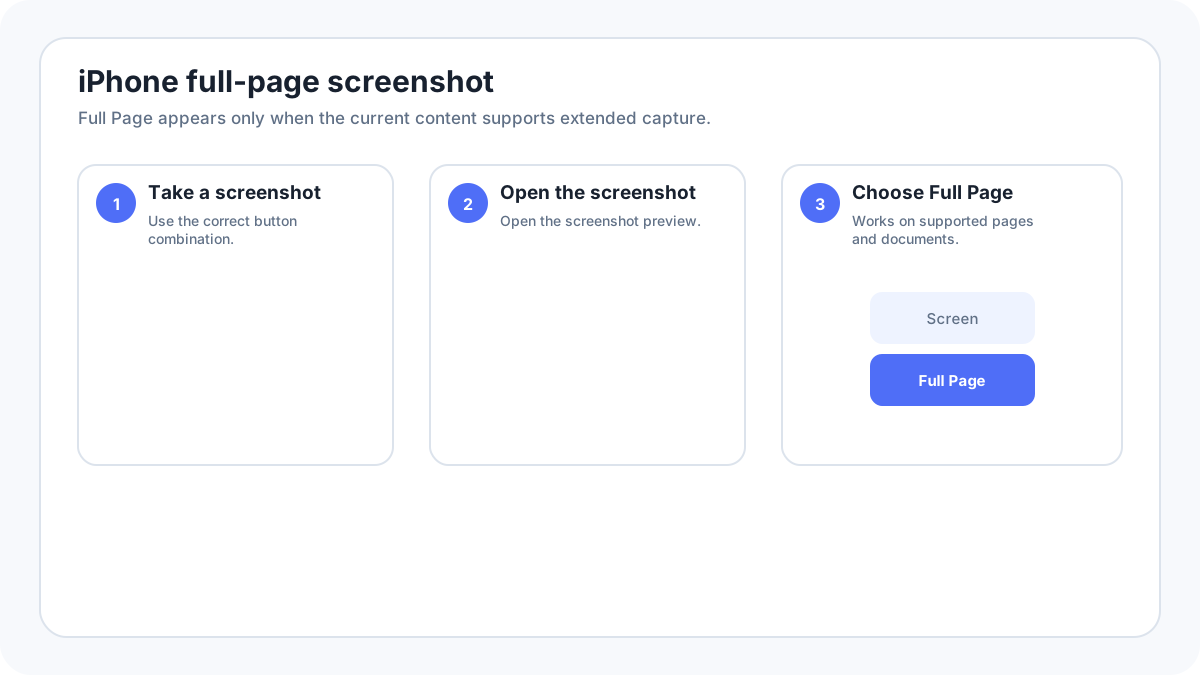
How to take a full page or scrolling screenshot on iPhone?
When the content supports it, take a normal screenshot and choose Full Page. Full Page is useful for long webpages and supported documents because it captures more than the visible display. It is not available in every app. Depending on the workflow and iOS version, full page results can be handled differently from a normal screenshot, including saving to Files/document oriented formats.
Take a screenshot without using the buttons
If a hardware button is difficult to press, use an accessibility method such as AssistiveTouch or configure Back Tap on supported iPhones. These methods are useful for accessibility and for devices in cases that make simultaneous button presses awkward. See the dedicated iPhone screenshot without buttons guide.
Where iPhone screenshots are saved?
Normal screenshots appear in the Photos app. Apple groups them in screenshot specific collections/media types, making them easier to find. If you explicitly save a full page capture to Files, look in the Files location you chose rather than only in Photos.
Edit, annotate and crop screenshots
Use the screenshot editor/Markup tools to crop, draw, highlight, add text or shapes and share. Keep annotations simple. For sensitive information, crop it out or use a solid redaction rather than a transparent marker.
Screenshot a webpage, document or conversation
For a normal visible area, use the standard screenshot buttons. For supported long webpages/documents, use Full Page. For a long conversation that does not expose Full Page, make overlapping captures or use the app’s own export function. Avoid stitching evidence screenshots in a way that could create ambiguity about what was changed.
Why a screenshot may be black or unavailable?
Some apps restrict screen capture for privacy, security or licensed media. Apple also notes that some apps, such as Apple TV in certain contexts, may not allow screenshots of protected windows on related platforms. If an app blocks capture, use its own sharing/export tools rather than trying to bypass the restriction.
iPhone screenshot not working
- Make sure you are using the button combination for your iPhone type.
- Press both buttons together and release quickly; holding them can trigger other actions.
- Remove a tight case temporarily if it interferes with Side or Volume buttons.
- Test the shortcut on the Home screen to determine whether one app is blocking capture.
- Use AssistiveTouch as a no button fallback if a hardware key is damaged.
- Restart the iPhone if the screenshot interface stops responding.
- Check available storage if captures appear to fail to save.
More iPhone and iPad screenshot guides
- Full page screenshot on iPhone
- Screenshot without buttons
- How to screenshot on iPad
- Where screenshots are saved
Verification source: Apple Support, Take a screenshot on iPhone. Interface wording can vary slightly by OS build, manufacturer and keyboard layout.