
iPhone और iPad पर स्क्रीनशॉट कैसे लें
iPhone/iPad गाइड: button combinations, full page, AssistiveTouch, save location, editing और troubleshooting।
सबसे तेज़ तरीका: Face ID iPhone: SideVolume Up
क्या होता है: Screen capture करता है और screenshot workflow खोलता है।
कहाँ सेव होता है: Normal screenshots Photos में save होते हैं, जब तक आप दूसरा destination न चुनें।
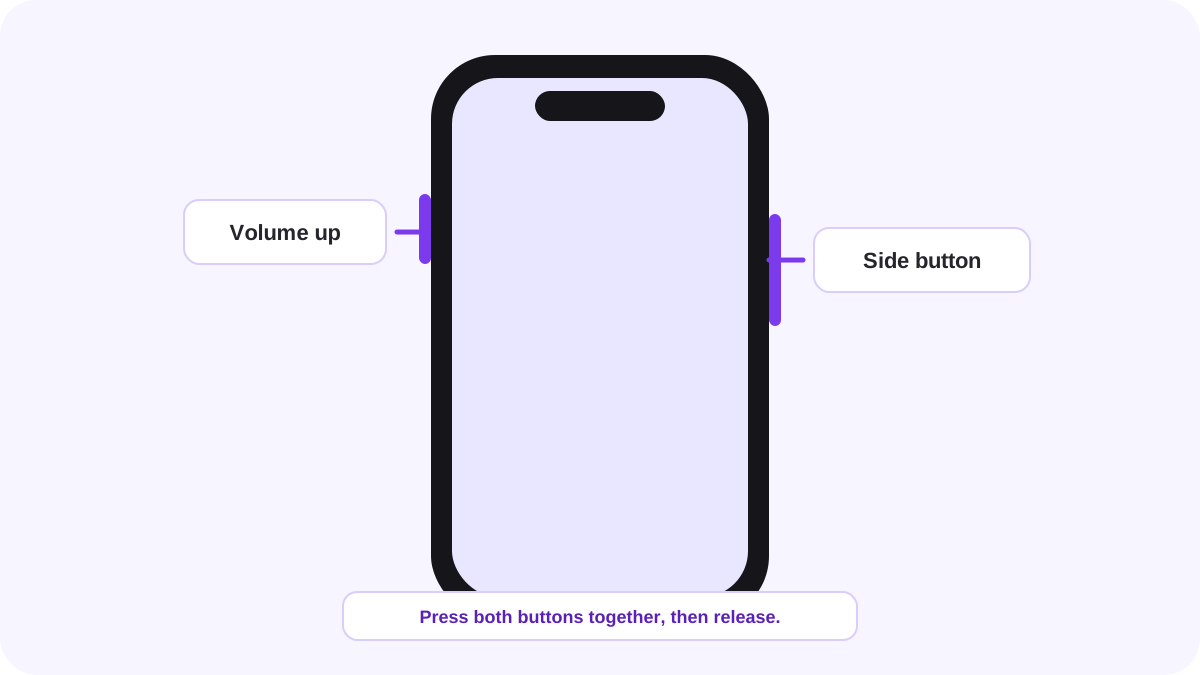
अपने iPhone के लिए सही button combination चुनें
| iPhone प्रकार | Buttons |
|---|---|
| Face ID iPhone | SideVolume Up |
| Side button वाला Touch ID | SideHome |
| Top button वाला पुराना Touch ID | TopHome |
Face ID वाले iPhone पर screenshot कैसे लें
- जिस screen को capture करना है उसे खोलें।
- Side button और Volume Up एक साथ दबाएँ।
- दोनों buttons तुरंत छोड़ दें। उन्हें दबाकर न रखें।
- Screenshot interface से crop, markup, share, delete या save करें।
iOS 26 में क्या बदला
Apple की मौजूदा support documentation के अनुसार iOS 26 में screenshot editing और sharing tools के साथ automatically खुलता है। iOS 18 और उससे पहले lower left corner में temporary thumbnail दिखाई देता है। इसलिए पुराने tutorials में दिखने वाला interface मौजूदा iPhone से अलग हो सकता है।
iPhone पर full page या scrolling screenshot कैसे लें
जब content support करे, normal screenshot लें और Full Page चुनें। Full Page लंबी webpages और supported documents के लिए उपयोगी है क्योंकि यह visible display से अधिक content capture करता है। यह हर app में उपलब्ध नहीं है। Workflow और iOS version के अनुसार full page results normal screenshot से अलग तरह handle हो सकते हैं, जिसमें Files या document oriented formats में save करना शामिल है।
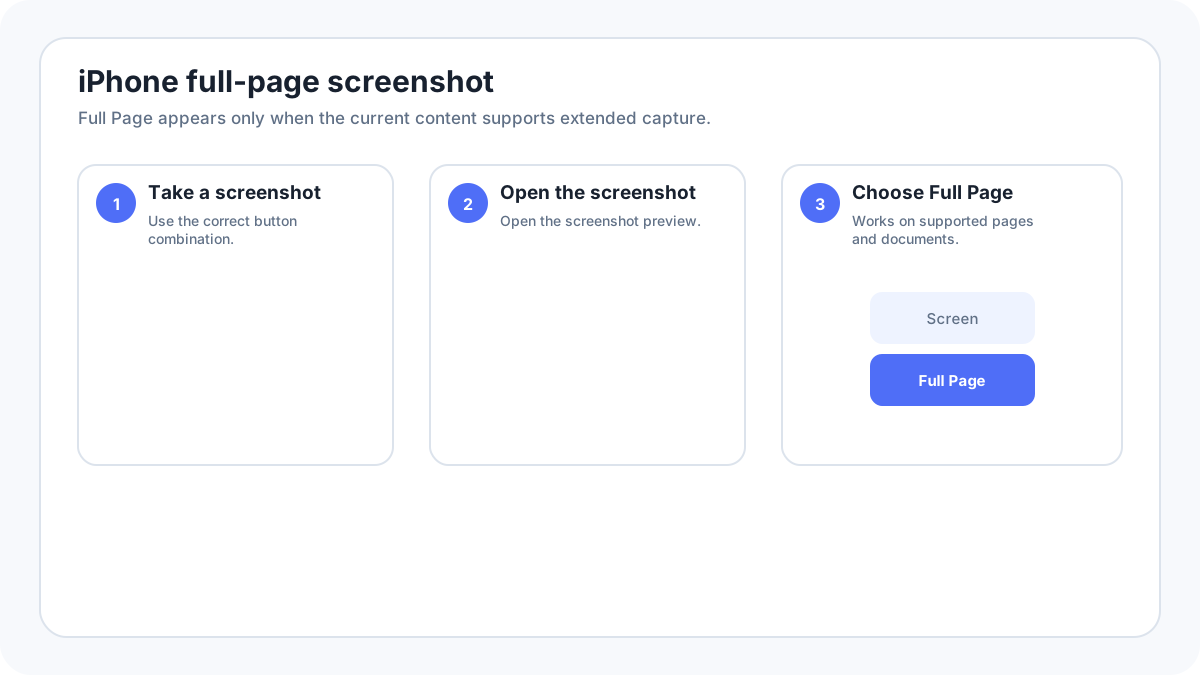
Buttons इस्तेमाल किए बिना screenshot लें
Hardware button दबाना कठिन हो तो AssistiveTouch जैसी accessibility method इस्तेमाल करें या supported iPhones पर Back Tap configure करें। Accessibility और tight cases में simultaneous button presses कठिन होने पर ये तरीके उपयोगी हैं। अलग iPhone screenshot without buttons guide देखें।
iPhone screenshots कहाँ save होते हैं
Normal screenshots Photos app में दिखाई देते हैं। Apple उन्हें screenshot specific collections/media types में group करता है, जिससे वे आसानी से मिलते हैं। यदि आप full page capture को साफ तौर पर Files में save करते हैं, तो उसे केवल Photos में नहीं बल्कि चुनी हुई Files location में देखें।
Screenshots को edit, annotate और crop करें
Screenshot editor/Markup tools से crop, draw, highlight, text या shapes जोड़ें और share करें। Annotations सरल रखें। Sensitive information के लिए transparent marker की जगह उसे crop करें या solid redaction इस्तेमाल करें।
Webpage, document या conversation का screenshot लें
Normal visible area के लिए standard screenshot buttons इस्तेमाल करें। Supported long webpages/documents के लिए Full Page चुनें। यदि लंबी conversation में Full Page उपलब्ध नहीं है तो overlapping captures लें या app का अपना export function इस्तेमाल करें। Evidence screenshots को इस तरह stitch न करें कि यह अस्पष्ट हो जाए कि क्या बदला गया था।
Screenshot black क्यों आता है या option उपलब्ध क्यों नहीं होता
कुछ apps privacy, security या licensed content के कारण capture restrict करती हैं। यदि app screenshot block करती है तो restriction bypass करने की कोशिश करने के बजाय उसके official share या export tools इस्तेमाल करें।
iPhone screenshot काम नहीं कर रहा
- अपने iPhone type के अनुसार सही button combination इस्तेमाल करें।
- दोनों buttons साथ दबाकर तुरंत छोड़ें; दबाए रखने से दूसरी actions trigger हो सकती हैं।
- यदि case Side या Volume button में बाधा दे रहा हो तो उसे अस्थायी रूप से हटाएँ।
- Home screen पर shortcut test करें ताकि पता चले कि केवल एक app capture block कर रही है या नहीं।
- Physical key खराब हो तो AssistiveTouch को no button alternative की तरह इस्तेमाल करें।
- Screenshot interface respond न करे तो iPhone restart करें।
- Screenshots save न हों तो available storage जाँचें।
और iPhone/iPad screenshot guides
- iPhone पर full page screenshot
- Screenshot without buttons
- iPad पर screenshot कैसे लें
- Screenshots कहाँ save होते हैं
सत्यापन स्रोत: Apple Support, iPhone पर screenshot लें. इंटरफ़ेस के शब्द सिस्टम संस्करण, निर्माता और कीबोर्ड लेआउट के अनुसार थोड़ा बदल सकते हैं।