
How to Take an iPhone Screenshot Without Buttons?
Take iPhone screenshots without pressing Side, Volume or Home buttons by using AssistiveTouch, Back Tap or Siri.
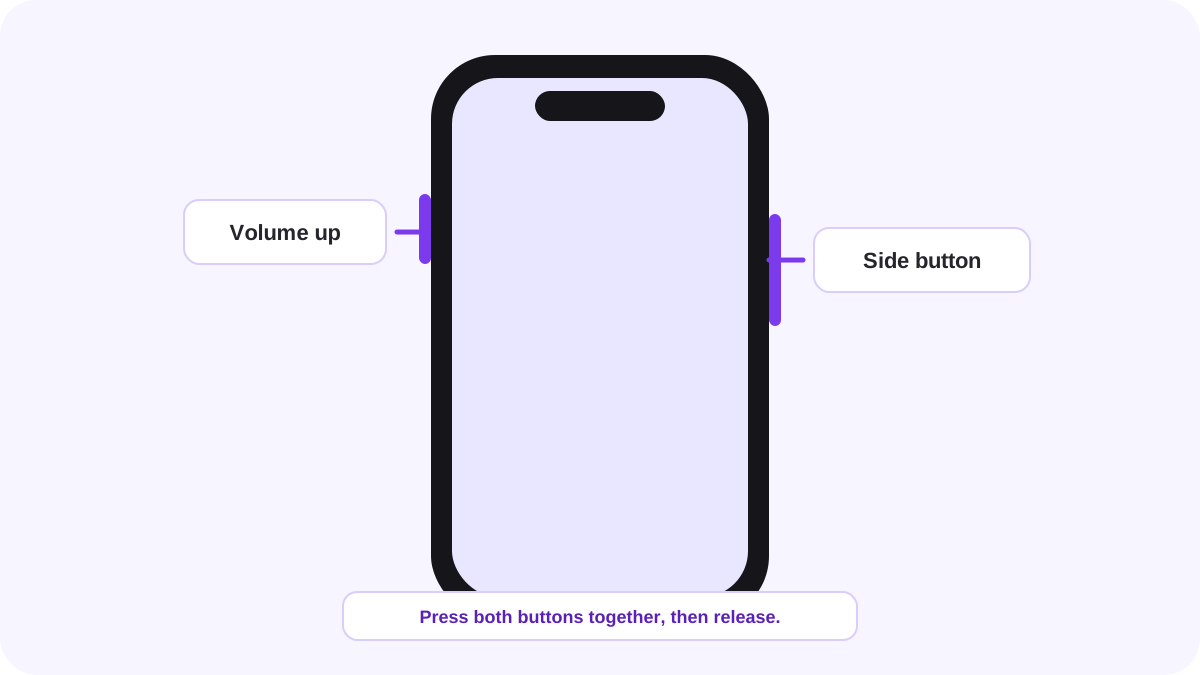
You do not have to use the normal two button shortcut to capture an iPhone screen. Apple supports alternate methods such as AssistiveTouch, Back Tap and Siri, which are useful when a button is damaged, difficult to reach or uncomfortable to press.
Method 1: use AssistiveTouch
- Open Settings and go to Accessibility, then Touch, then AssistiveTouch.
- Turn AssistiveTouch on.
- Customize the top level menu or a custom action and choose Screenshot when the option is available.
- Open the screen you want to capture.
- Use the AssistiveTouch control to trigger Screenshot.
When is AssistiveTouch the best choice?
AssistiveTouch is a good option when you need a visible on screen control or when a Side, Home or Volume button does not work reliably. You can leave the floating control enabled and move it to a less distracting position when you are not using it.
Method 2: use Back Tap
- Open Settings and go to Accessibility, then Touch.
- Open Back Tap on a supported iPhone.
- Choose Double Tap or Triple Tap.
- Assign Screenshot to that gesture.
- Open the screen and tap the back of the iPhone two or three times using the gesture you configured.
Why does Back Tap sometimes fail?
Back Tap depends on the device and how the taps are detected. A thick case, an unusual grip or inconsistent tapping can reduce reliability. If Double Tap triggers by accident, Triple Tap can be easier to control. If Back Tap is missing, the current iPhone or software configuration may not support it.
Method 3: ask Siri
Apple also documents Siri as an alternate way to take a screenshot. This can be useful when you cannot press buttons or when your hands are occupied. Siri availability depends on your device settings and language configuration.
Where is the screenshot saved?
Normal screenshots are saved to the photo library. Open Photos, go to Collections, then look under Media Types for Screenshots. A full page capture can use a different save workflow when you choose to save it as a PDF or file.
Can these methods bypass apps that block screenshots?
No. Changing the trigger does not remove an app level privacy, security or media restriction. If a protected app blocks screenshots, use the app’s own export, receipt, download or share function when one is provided.
Troubleshooting screenshot methods without buttons
- Search Settings for AssistiveTouch or Back Tap if the menu path has changed.
- Make sure Screenshot is actually assigned to the action you are using.
- Test the method on the Home Screen to rule out an app specific restriction.
- If Back Tap is unreliable, remove a thick case temporarily and retest.
- Restart the iPhone if accessibility controls stop responding normally.
FAQ
Can I take an iPhone screenshot with no physical buttons at all?
Yes. AssistiveTouch, Back Tap and Siri can trigger screenshots without the normal button combination when those features are available and configured.
Does AssistiveTouch appear in the screenshot?
The screenshot workflow is designed to capture the screen content. If you are concerned about the floating control, review the captured image before sharing it and move the control to a less distracting location.
Related iPhone guides
Verification source: Apple Support: Take a screenshot on iPhone. Interface wording can vary slightly by OS build, manufacturer and keyboard layout.