
How to Take a Screenshot on a Laptop or PC?
Screenshot any Windows laptop or PC with Snipping Tool, Print Screen, Fn key variations and brand specific keyboard guidance.
If you are searching for how to take a screenshot on a laptop, PC or computer, the operating system matters more than the logo on the lid. Most HP, Dell, Lenovo, ASUS, Acer and other Windows laptops use the same Windows capture tools; the main hardware difference is where the Print Screen function is placed on the keyboard.
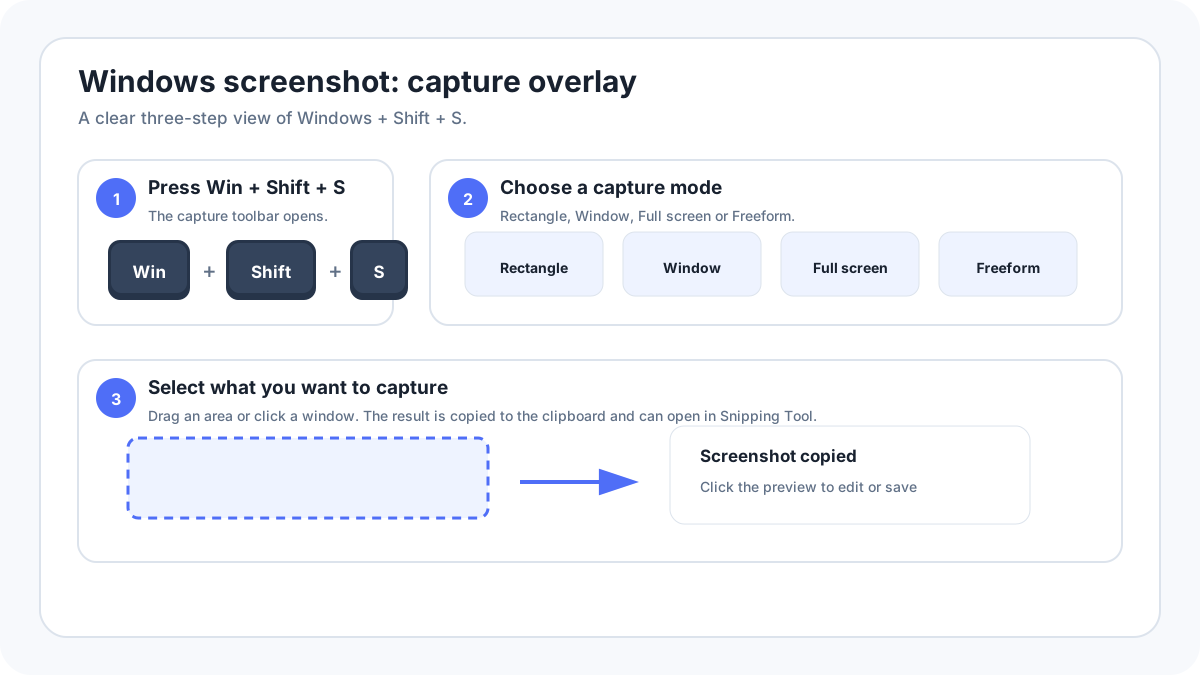
Fastest method on a Windows laptop
- Open the screen you want to capture.
- Press WindowsShiftS.
- Choose Rectangle for part of the screen, Window for one app, or Full screen for everything.
- Make the capture.
- Open the preview to crop, annotate, save or share.
Laptop screenshot shortcut keys
| Shortcut | Result | When to use it |
|---|---|---|
| WindowsShiftS | Opens Snipping Tool capture overlay | Best general method on Windows 11/10 |
| PrtSc / PrtScn | Usually copies the full desktop to the clipboard | When your keyboard has a dedicated Print Screen function |
| AltPrtScn | Copies the active window | Clean capture of one program window |
| WindowsPrtScn | Usually saves the full desktop to Pictures › Screenshots | When you want a file immediately |
| Fn + shared Print Screen key | Activates Print Screen on some compact layouts | Only when the keyboard legend places PrtSc on another key |
Where is the screenshot key on a laptop?
Look across the top row and the upper right area of the keyboard for PrtSc, PrtScn, Print Scr or a screen/camera style icon. Small keyboards often combine the function with another key. Do not assume that every HP, Dell or Lenovo laptop uses the same Fn combination; keyboard layouts vary by model family and generation.
How to screenshot without a Print Screen key?
You do not need a Print Screen key. Press WindowsShiftS, or open Snipping Tool from Start. This is often simpler on thin laptops where Print Screen is hidden in a function layer. A touchscreen Windows device can also open Snipping Tool without using a physical PrtScn key.
Where laptop screenshots are saved?
WindowsPrtScn usually creates a file in Pictures › Screenshots. Print Screen and AltPrint Screen are commonly clipboard captures and must be pasted before they become files. Snipping Tool lets you save to a location you choose and current versions can remember save behavior.
What changes by laptop brand?
The Windows software is largely the same, but keyboard layout changes. That is why the site keeps one strong general laptop guide and separate brand pages only where the keyboard or hardware guidance is genuinely useful.
| Brand guide | Why it can help |
|---|---|
| HP laptop | Pavilion, Envy, Spectre, EliteBook and other HP keyboard layouts |
| Dell laptop | XPS, Inspiron, Latitude and Precision layouts |
| Lenovo laptop | ThinkPad, IdeaPad, Yoga and Legion layouts |
| ASUS laptop | Zenbook, Vivobook, ROG and TUF layouts |
| Microsoft Surface | Keyboard, tablet and supported hardware button methods |
Laptop screenshot troubleshooting
- Try WindowsShiftS first; it avoids most Print Screen keyboard differences.
- If PrtScn is printed as a secondary function, try Fn with that key.
- Check whether Function Lock/Fn Lock changes the top row behavior.
- Test the capture on the desktop to see whether only one app is blocking screenshots.
- If the capture is on the clipboard, paste it into Paint before searching for a missing file.
- If a shortcut was remapped by gaming, clipboard or vendor software, open Snipping Tool directly.
Laptop, PC and computer mean the same capture workflow here
Search phrases such as “how to screenshot on laptop,” “how to take a screenshot on PC,” “screenshot on computer” and “laptop screenshot key” normally describe the same Windows task. Keeping those variants on one comprehensive page is more useful than publishing many nearly identical pages with different wording.