
How to Take a Screenshot on Android?
Complete Android screenshot guide with buttons, no button methods, scrolling capture, save locations, Samsung, Pixel, Motorola, Xiaomi and troubleshooting.
Fastest method: PowerVolume Down
What happens: Captures the current screen on most Android phones and tablets.
Saved to: Usually Photos or Gallery › Screenshots
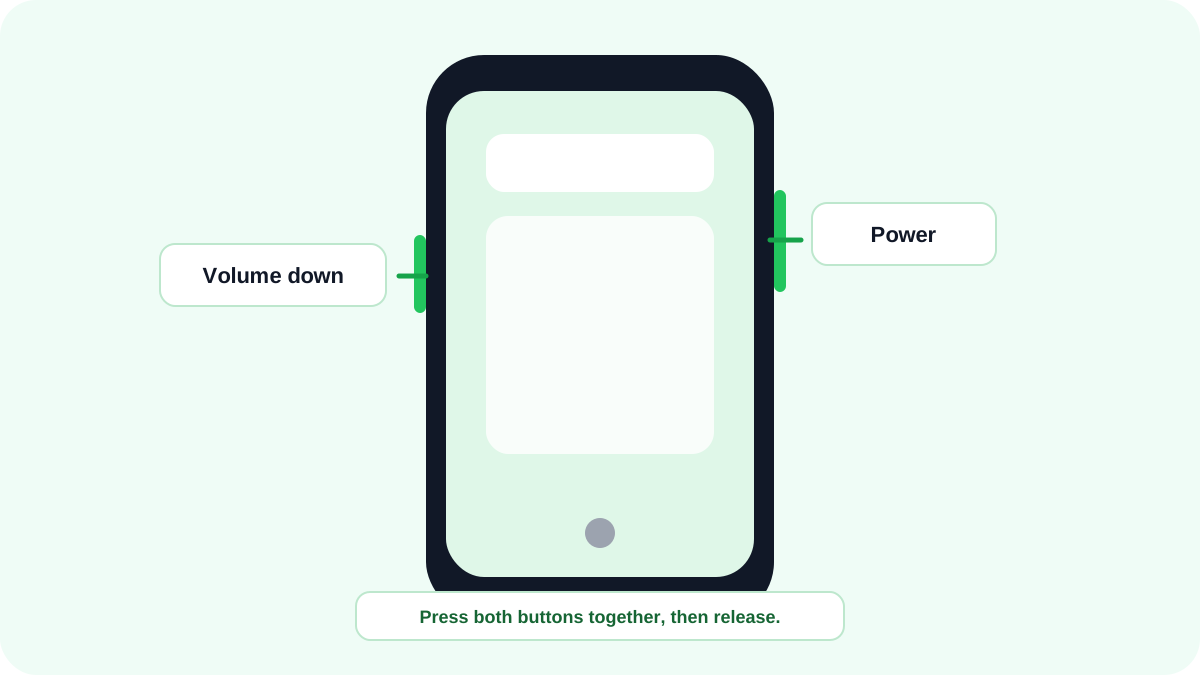
Android screenshot methods at a glance
| Method | Best for | Availability |
|---|---|---|
| PowerVolume Down | Normal screenshot | Standard method on most modern Android devices |
| Capture more | Long or scrolling screenshot | Android 12+ on most scrollable screens |
| Recent Apps / Overview screenshot | Screenshot without physical buttons | Available on Pixel and some Android interfaces |
| Three finger gesture | Fast gesture capture | Manufacturer feature on selected Motorola, Xiaomi, OnePlus and other phones |
| Palm swipe / manufacturer toolbar | Alternative capture and long screenshots | Samsung Galaxy and selected manufacturer interfaces |
Method 1: PowerVolume Down
- Open the app, webpage, message or screen you want to capture.
- Press Power and Volume Down at the same time. A quick simultaneous press works better than holding one button first.
- Release the buttons when the screen flashes, a sound plays or a preview appears.
- Tap the preview for editing, sharing or scrolling capture when those options are available.
If holding the buttons opens the power menu or changes the volume, try a shorter simultaneous press. Phone cases can also make one of the buttons harder to press.
How to take a scrolling screenshot on Android 12 and later?
Google documents built in scrolling screenshots on Android 12 and later for most screens that can scroll. The key option is Capture more. It appears after an ordinary screenshot only when the current app or page supports extended capture.
- Open a long page, conversation, settings list or other scrollable content.
- Take a normal screenshot with PowerVolume Down.
- Tap Capture more beside the screenshot preview.
- Use the crop handles/guidelines to choose how much of the long content you want.
- Save the result and inspect it before sharing, especially if the page contains private information.
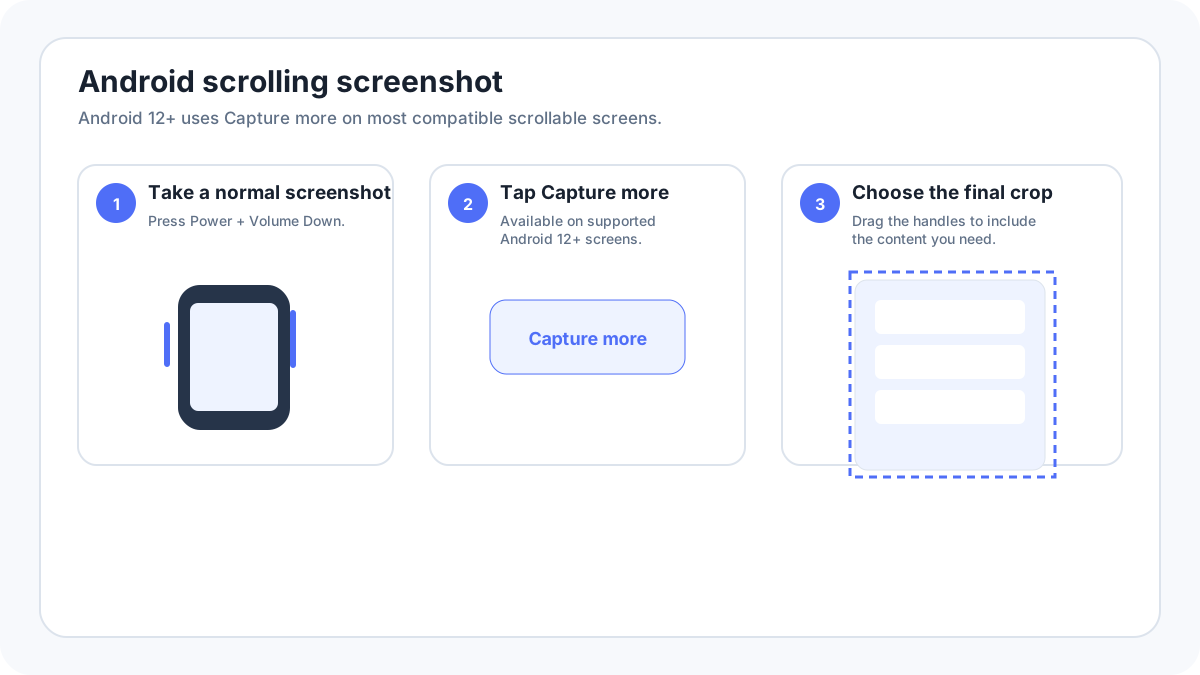
Why Capture more is missing?
- The current screen may not actually scroll.
- The app may not support Android’s extended screenshot interface.
- Protected, secure or private content may block screen capture.
- Your phone manufacturer may use another label such as Scroll capture, Long screenshot, Expanded screenshot or an arrow icon.
- Your Android version may be older than Android 12.
- A custom manufacturer interface can replace Google’s standard post capture controls.
Use our dedicated Android scrolling screenshot guide for Samsung, Pixel, Motorola, Xiaomi/Redmi/POCO, OnePlus, OPPO, vivo, realme and HONOR differences.
Take an Android screenshot without physical buttons
The exact no button method depends on the manufacturer. Google Pixel can expose a Screenshot action in Recent Apps/Overview; some phones offer a Quick Settings tile; manufacturers may provide gestures; accessibility features can also help when hardware buttons are difficult to use. Avoid assuming one manufacturer gesture works on every Android phone.
Google Pixel
Pixel uses PowerVolume Down, supports Android 12+ Capture more on compatible screens, and Google documents screenshot actions from the app overview depending on navigation mode. Google Assistant can also take a screenshot in supported contexts. See the Pixel guide for the current workflow.
Samsung Galaxy
Samsung supports the standard Side/PowerVolume Down method and adds Galaxy specific options. Current Samsung documentation describes Palm swipe to capture on compatible devices and Scroll capture on long content. The Scroll capture control appears only when scrolling is possible. See the Samsung Galaxy guide.
Motorola
Motorola phones use the normal Android button shortcut and selected models/software versions also provide a three finger screenshot gesture. Because gesture menus vary by Moto app/software build, check Settings search for “screenshot” or “three finger” if it is not enabled.
Xiaomi, Redmi and POCO
Xiaomi documentation describes a three finger downward swipe for screenshots and a three finger hold for partial screenshots when those shortcuts are enabled. MIUI and HyperOS menu paths can differ, so use Settings search instead of relying on an old menu path.
OnePlus and other Android manufacturers
OnePlus/OxygenOS and other Android interfaces can add gestures, long screenshot controls and sidebar shortcuts. The standard button method remains the safest first instruction; manufacturer features should be treated as alternatives, not universal Android behavior.
Where Android screenshots are saved?
Google’s current Android instructions place screenshots in Photos › Collections › On this device › Screenshots when Google Photos is used. Manufacturer Gallery apps usually have a Screenshots album. File manager paths can vary, but Pictures/Screenshots is common on many devices.
Edit, crop, mark up and share
Tap the screenshot preview immediately after capture to use the available crop, markup, text, share or long capture options. If the preview disappears, open the screenshot later in Google Photos or your manufacturer Gallery app. Before sharing, check the status bar, notifications, contact names, account identifiers and browser tabs for information you did not intend to disclose.
Screen recording on Android
Google documents a built in Screen record tile on modern Android. Swipe down twice, find Screen record (or add it through Edit), choose options such as audio/touches when available, then start the countdown. Screen recordings are usually stored separately from screenshots.
Why some Android apps block screenshots?
Banking apps, password managers, private/incognito surfaces, enterprise apps and streaming services may use secure window controls that prevent screenshots or make the captured area black. This is an intentional privacy/security or licensing feature. Use the app’s official export, receipt, share or download function where provided.
Android screenshot not working: troubleshooting
- Test PowerVolume Down on the Home screen. If it works there, the original app may be blocking capture.
- Remove a bulky case temporarily if one button is not registering.
- Restart the phone if screenshot previews or system controls have stopped responding.
- Search Settings for “screenshot” to find manufacturer specific gestures and toolbar options.
- Check Android version if you expect Capture more; Google’s standard long screenshot steps require Android 12 or newer.
- Make sure storage is not completely full.
- If screenshots are taken but cannot be found, check both Google Photos and the manufacturer Gallery/Files app.
- On managed work profiles, company policies may restrict capture.
Android screenshot FAQ
What is the universal Android screenshot shortcut?
PowerVolume Down is the standard first method on most current Android devices. Manufacturer gestures are optional additions.
Can Android capture a whole webpage?
On Android 12+, Capture more can capture extended content on many scrollable screens. Browser behavior and manufacturer interfaces vary, so it is not guaranteed in every app.
Why does a scrolling screenshot stop early?
The app may expose only part of its content to the system capture service, the page may contain embedded/virtualized sections, or the manufacturer may impose a maximum capture length.
More Android screenshot guides
- Scrolling screenshot on Android
- Screenshot without buttons
- Where Android screenshots are saved
- Samsung Galaxy screenshots
- Google Pixel screenshots
- Xiaomi, Redmi and POCO screenshots
Verification source: Google Android Help, Take a screenshot or record your screen. Interface wording can vary slightly by OS build, manufacturer and keyboard layout.