
How to Take a Screenshot on Windows 11?
Detailed Windows 11 screenshots: Snipping Tool modes, Print Screen, delayed capture, save locations, text actions, screen recording and fixes.
Windows 11 includes several screenshot methods, but Snipping Tool is the most flexible because it handles regions, windows, full screen capture, delay, annotation, text actions and video snippets in one app.
Windows 11 screenshot shortcuts
| Shortcut | Action |
|---|---|
| WindowsShiftS | Open screenshot overlay |
| PrtScn | Full desktop clipboard capture or Snipping Tool, depending on Settings |
| AltPrtScn | Active window to clipboard |
| WindowsPrtScn | Full desktop saved to Pictures › Screenshots |
| WindowsShiftR | Open Snipping Tool video capture |
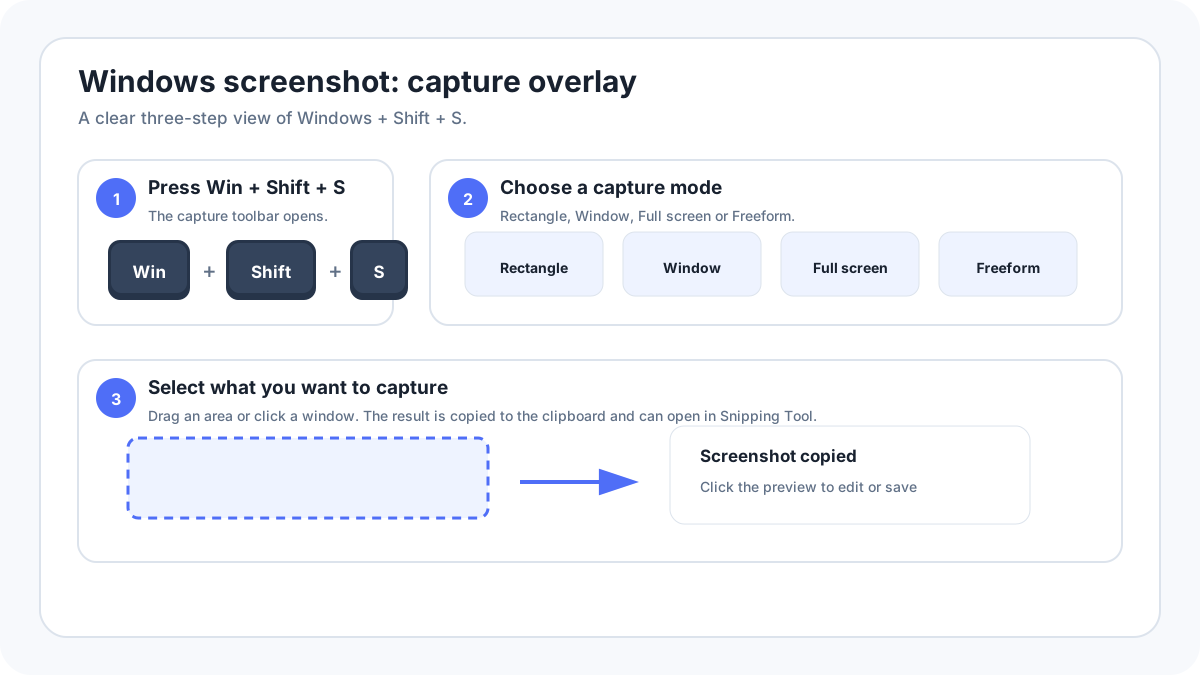
Use WindowsShiftS
- Arrange the screen.
- Press WindowsShiftS.
- Choose Rectangle, Window, Full screen or Freeform.
- Make the capture.
- Open the preview/notification in Snipping Tool to edit or save.
Delayed screenshot
Open Snipping Tool before the menu/tooltip you need, choose a delay, start the capture countdown and then open the transient interface. This is useful for right click menus and hover states that disappear when you press a shortcut.
Text actions and current Snipping Tool features
Current Windows 11 Snipping Tool builds can expose text extraction/actions, annotation, shapes and recording. Microsoft also documents certain Copilot+ PC features such as Perfect Screenshot and Color Picker. Availability depends on Windows build and hardware, so these should be treated as additions rather than requirements for normal capture.
Where screenshots are saved?
WindowsPrtScn normally writes to Pictures › Screenshots. PrtScn and AltPrtScn normally use the clipboard. Snipping Tool can save to a chosen location and current builds can provide automatic saving behavior through app settings.
Troubleshooting
- Try WindowsShiftS if PrtScn seems dead.
- Check whether Print Screen is configured to open Snipping Tool.
- Try Fn on a compact laptop only when the key legend indicates a shared function.
- Open Snipping Tool from Start to test the app itself.
- Check storage and the clipboard before assuming the screenshot is lost.
- Managed work/school PCs can restrict capture.