
How to Use Snipping Tool on Windows?
Complete Snipping Tool guide for screenshot modes, delay, text actions, annotation, saving, printing, recording and troubleshooting.
Snipping Tool is the built in Windows capture app for still screenshots and, on current supported builds, rectangular screen recording. It is usually the best place to start because it works even when your keyboard has no convenient Print Screen key.
Open Snipping Tool
- Press WindowsShiftS for a still screenshot overlay.
- Press WindowsShiftR for a video snip on current supported builds.
- Or open Start and search for Snipping Tool.
Screenshot modes
| Mode | Use it for |
|---|---|
| Rectangle | Most regions, dialogs, charts and webpage sections |
| Window | One app window without the desktop |
| Full screen | The visible desktop |
| Freeform | An irregular hand drawn region |
Take a screenshot
- Open Snipping Tool or press WindowsShiftS.
- Choose a capture mode.
- Select the region/window if required.
- Open the result in Snipping Tool.
- Crop, annotate, copy, save or share.
Use a delay
Use Delay when the thing you need to capture disappears as soon as you click elsewhere. Start the delayed capture, then open a context menu, tooltip or transient UI before the countdown ends.
Annotate, crop and copy text
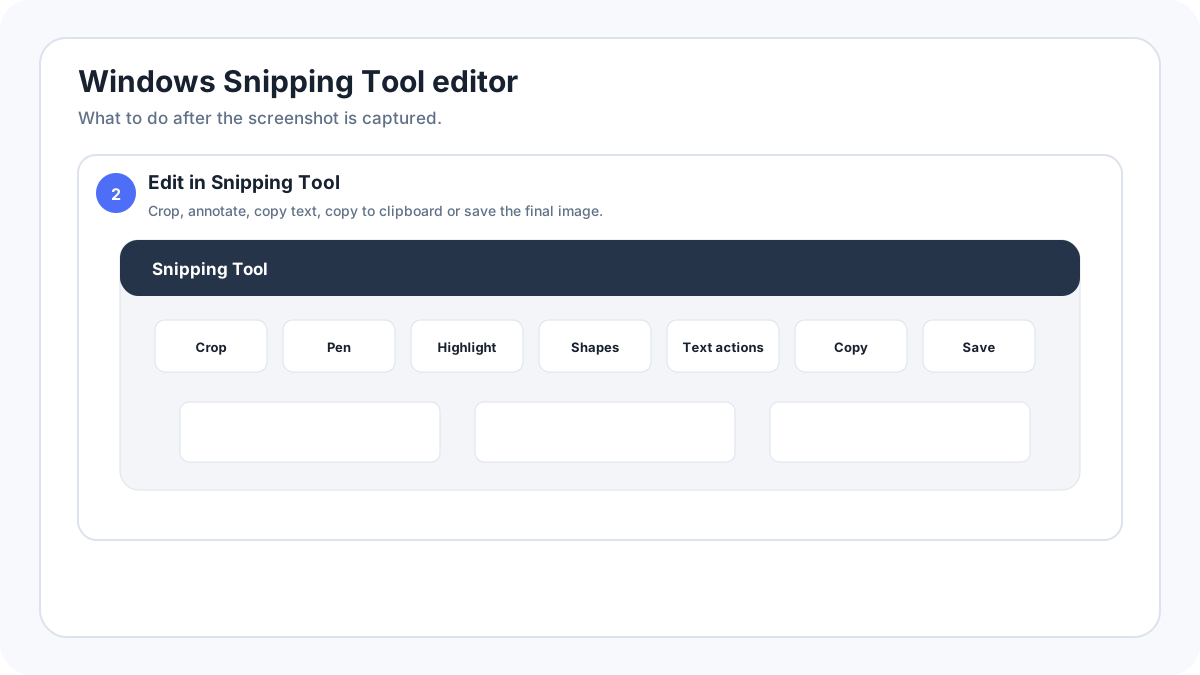
Current Snipping Tool lets you crop, draw, highlight, add supported shapes and use Text actions to extract text from an image. This is useful for copying an error code or address without manually retyping it.
Save, copy and print
- CtrlC copies the open snip.
- CtrlS saves it.
- Use the app Save control to choose a file location/type supported by the current version.
- Use Windows printing from the saved file when you need a paper copy.
Video snips
Switch to Record or press WindowsShiftR, select a rectangular area and start recording. Use this when motion or timing matters more than a still image.
Snipping Tool not working
- Repair/reset the app from Windows app settings.
- Check keyboard shortcut settings.
- Close shortcut remapping utilities.
- Update Windows/Snipping Tool through normal Windows channels.
- Test on the desktop to rule out one app’s screenshot restriction.