
How to Take a Screenshot on Linux?
Complete Linux screenshot guide for GNOME, KDE Plasma/Spectacle, Ubuntu, Wayland, X11, save locations, scrolling capture and troubleshooting.
Fastest method: Print Screen
What happens: Usually opens or triggers the screenshot tool supplied by your desktop environment.
Saved to: The folder and clipboard behavior depend on GNOME, KDE Plasma, Xfce, Cinnamon and your chosen utility.
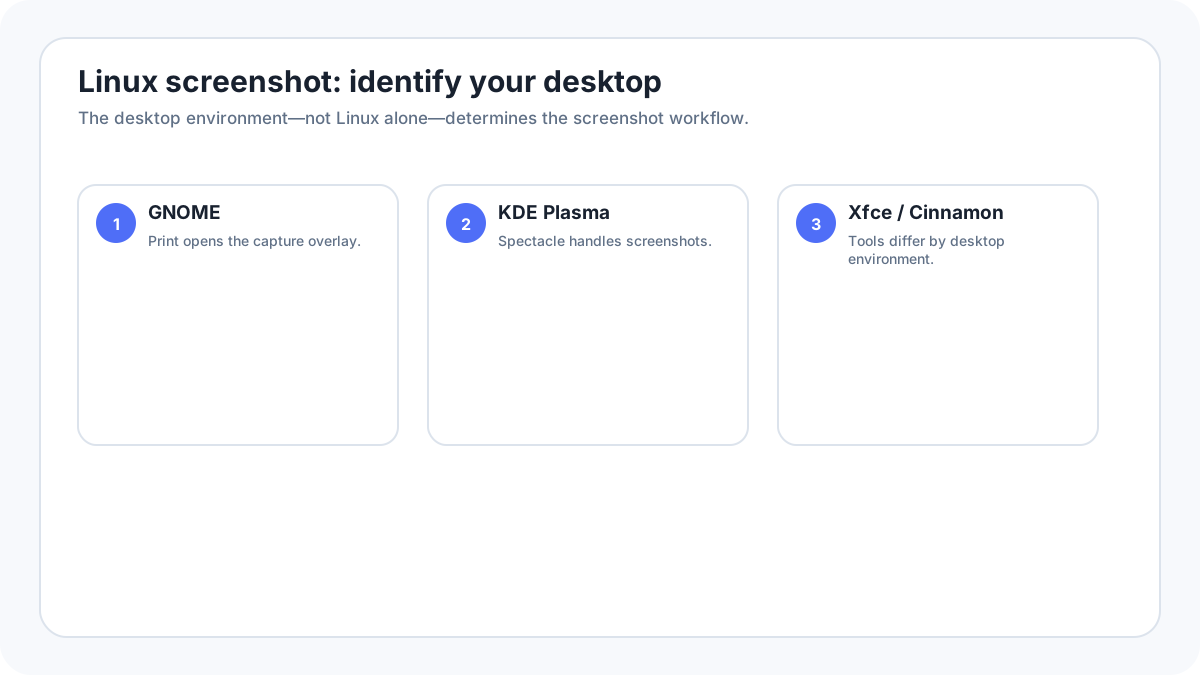
Linux is not one screenshot system
A Linux distribution can run different desktop environments, and each environment can provide a different screenshot tool. Ubuntu commonly uses GNOME, KDE Plasma uses Spectacle, Linux Mint often uses Cinnamon, and lightweight systems may use Xfce. Wayland versus X11 can also affect third party screenshot tools. That is why a reliable Linux guide starts by identifying the desktop rather than giving one shortcut and pretending it is universal.
GNOME screenshot workflow
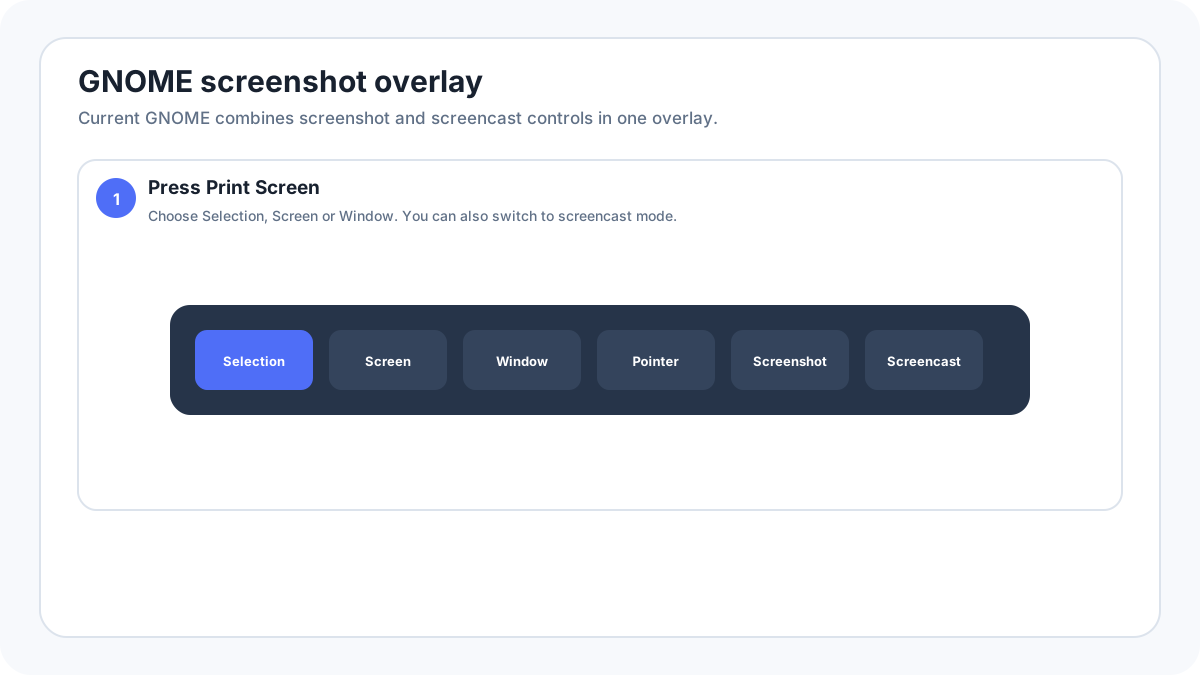
Current GNOME documentation says pressing Print opens the screenshot overlay. From there you can capture a selected area, the screen or a window and switch between still screenshot and screencast modes.
- Press Print Screen.
- Choose Selection, Screen or Window.
- For Selection, drag the handles/crosshair around the area.
- Capture the screenshot. GNOME saves it to Pictures/Screenshots and also places it on the clipboard in the current documented workflow.
KDE Plasma and Spectacle
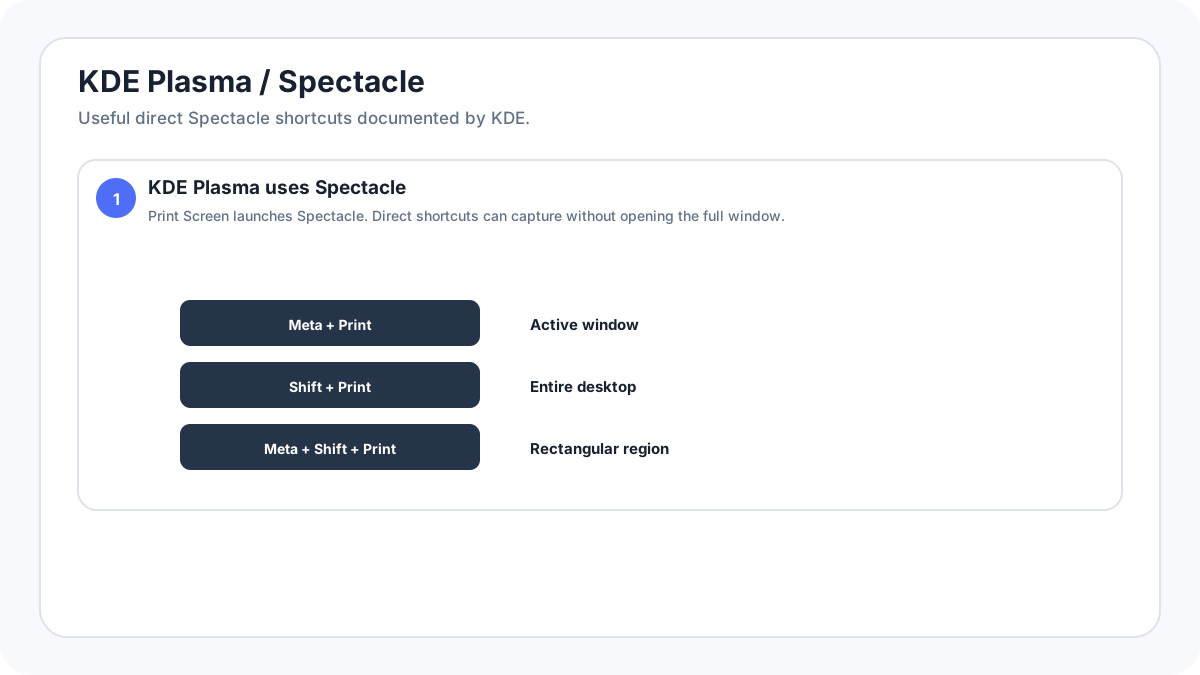
KDE Plasma uses Spectacle. KDE documents Print Screen to launch Spectacle and several direct shortcuts that save without opening the full interface.
| KDE shortcut | Action |
|---|---|
| Print Screen | Launch Spectacle |
| MetaPrint Screen | Capture the active window |
| ShiftPrint Screen | Capture the entire desktop/all monitors |
| MetaShiftPrint Screen | Capture a rectangular region |
Ubuntu screenshots
Modern Ubuntu releases using GNOME generally follow the GNOME workflow above. Older Ubuntu versions or installations with another desktop can behave differently. If a web guide tells you to use an old standalone screenshot program and your system instead opens a modern overlay, follow the current desktop interface.
Wayland vs X11
Wayland deliberately restricts arbitrary screen access more than X11. Older utilities that directly read the screen can fail or behave differently on Wayland. Prefer the desktop environment’s built in screenshot portal or a utility that explicitly supports your Wayland session. Do not disable Wayland simply to make an outdated screenshot tool work unless you understand the broader security/compatibility tradeoff.
Flameshot and third party screenshot utilities
Flameshot is popular when you want annotation immediately after selecting a region. Support can vary by distribution, display server and package version. Install it from a trusted distribution repository when possible, and test it in your current Wayland/X11 session before assigning a global shortcut.
Where Linux screenshots are saved?
On current GNOME, screenshots are documented under Pictures/Screenshots. Spectacle has configurable save locations. Other desktops/tools may use Pictures, the home folder or a configured custom directory. If Print Screen appears to work but you cannot find a file, also check whether your tool copied only to the clipboard.
Scrolling screenshots on Linux
A full page webpage is usually better captured by the browser itself. For long desktop applications, a universal scrolling screenshot is uncommon because applications render content differently. Use an application export/print function, a browser full page capture for webpages, or a trusted capture utility with scrolling support that is compatible with your desktop/session.
Linux screenshot not working
- Identify the desktop environment first: GNOME, KDE Plasma, Xfce, Cinnamon or another shell.
- Press Print Screen and check whether an overlay appears.
- Open the screenshot application from the app launcher to separate an app problem from a keyboard shortcut problem.
- Check Settings › Keyboard shortcuts for remapped or disabled capture bindings.
- If a third party tool fails only on Wayland, verify that its Wayland integration is supported.
- Check save location settings and clipboard behavior.
- On managed systems, security policies can restrict capture.
More Linux screenshot guides
Verification source: GNOME Help, Screenshots and screencasts. Interface wording can vary slightly by OS build, manufacturer and keyboard layout.