
How to Use Flameshot for Screenshots on Linux?
Detailed Flameshot guide for capturing, annotating, copying and saving screenshots on Linux, including Wayland troubleshooting.
Flameshot is a third party screenshot application aimed at users who want annotation controls immediately after selecting a region. It is useful when the built in GNOME or KDE tool captures the image but you also want arrows, boxes, text, blur/pixelation or a fast copy/save workflow.
Install Flameshot safely
Prefer your Linux distribution’s trusted repository/package manager or the official Flameshot project instructions. Package versions differ by distribution, and Wayland integration can change between desktop releases, so avoid copying random installation commands from old forum posts.
Basic Flameshot capture workflow
- Launch Flameshot, or run the GUI capture action from your desktop launcher/shortcut.
- Drag to select the region you want.
- Use the on canvas tools to annotate only what helps the reader.
- Copy the result to the clipboard or save it as a file.
- Open the saved file and verify that small interface text is readable before sharing.
Useful capture controls
The official Flameshot documentation describes a configurable annotation interface and keyboard controls. In capture mode, common workflows include copying the selection to the clipboard or saving it directly. Exact bindings can be customized, so check the Key Bindings page/configuration on the version you installed rather than assuming every distribution ships identical defaults.
Set a keyboard shortcut
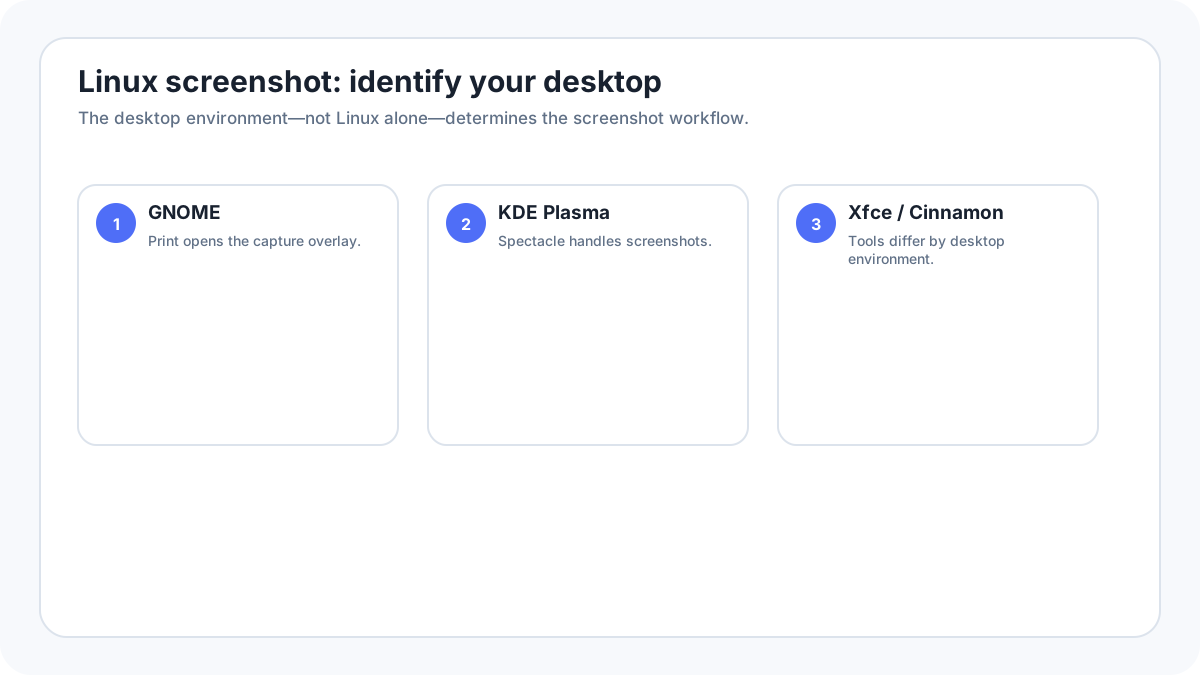
Open your desktop environment’s keyboard shortcut settings and bind your preferred key to the Flameshot GUI capture action. If Print Screen is already owned by GNOME Screenshot or Spectacle, either choose another shortcut or intentionally replace the existing binding. Keep at least one reliable native capture method available while testing.
Flameshot on Wayland
Wayland deliberately places screen capture behind desktop portals and permission controls. Flameshot’s own documentation maintains a dedicated Wayland help page because behavior differs across GNOME, KDE and distribution versions. On GNOME Wayland you may see a Share/permission dialog; on some configurations the portal packages/permissions are the source of “Unable to capture screen” errors.
GNOME Wayland troubleshooting
- First test GNOME’s built in Print Screen overlay; if it works, the desktop capture stack itself is functional.
- Confirm the required xdg desktop portal components for your desktop are installed through your distribution.
- If Flameshot was denied screenshot permission, review/reset the portal permission using current official Flameshot/distribution guidance.
- Do not paste privileged terminal commands from untrusted websites simply to bypass a permission dialog.
KDE Plasma / Wayland troubleshooting
KDE ships Spectacle as its native screenshot tool and it generally has the closest integration with Plasma. If Flameshot has scaling, portal or multi monitor problems, test Spectacle first. Flameshot’s Wayland guidance notes that behavior is version sensitive, so check the current project documentation for your installed version.
When to use Flameshot vs the built in tool?
| Need | Recommended starting point |
|---|---|
| Fast GNOME screenshot | GNOME built in screenshot overlay |
| KDE/Plasma capture | Spectacle |
| Immediate annotation workflow | Flameshot |
| Wayland capture fails | Native tool first, then diagnose portal/Flameshot integration |
| Evidence/archive capture | Keep an untouched original before annotations |
Privacy before upload/share
Flameshot can make sharing fast, which also makes accidental disclosure fast. Crop or redact names, emails, notification previews, account identifiers and tokens before uploading a screenshot to any external service. Keep a local original when the screenshot is evidence or a support record.
More Linux screenshot guides
Verification source: Flameshot Documentation, Overview and Wayland help. Interface wording can vary slightly by OS build, manufacturer and keyboard layout.