How to Edit or Crop a Screenshot?
Crop, annotate, add text or arrows, resize and safely prepare screenshots on Windows, Mac, Android and iPhone.
Most screenshot editing is simple: crop away what does not matter, add only the annotation needed to explain the image, and remove private information before sharing. You can do this with built in tools on Windows, Mac, Android and iPhone without installing a separate screenshot editor for basic work.
How to crop a screenshot?
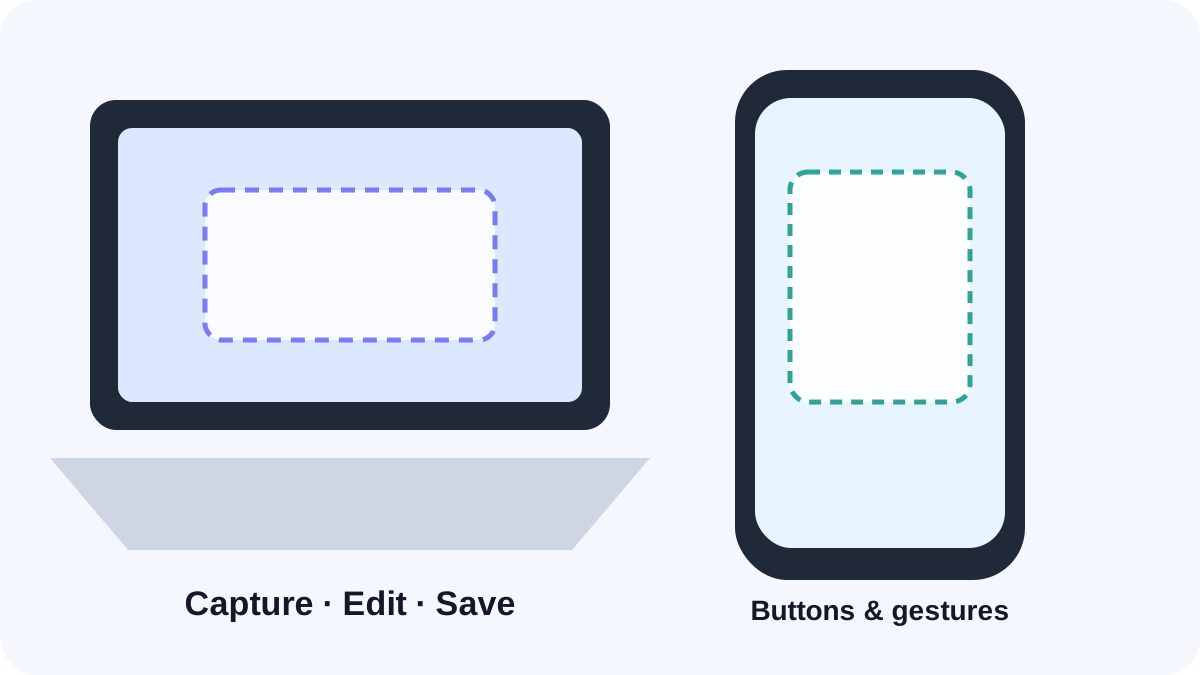
- Open the screenshot in your device’s built in editor.
- Choose Crop.
- Drag the crop handles around the content you actually need.
- Check that important labels, error codes and context are still visible.
- Apply the crop and save a copy when the original may still be useful.
Built in screenshot editors by platform
| Platform | Built in editing path |
|---|---|
| Windows | Open the capture in Snipping Tool; use crop, pen/highlight and supported annotation/text actions. Paint is useful for additional edits. |
| Mac | Use the floating screenshot thumbnail, Markup or Preview. |
| Android | Use the post capture preview, Google Photos or the manufacturer Gallery editor. |
| iPhone / iPad | Open the screenshot preview and use Markup/crop controls. |
Add arrows, boxes and text without making the image confusing
Use one visual language throughout the image. Numbered callouts are often clearer than several arrows pointing in different directions. Keep labels away from the interface text you are trying to explain and use enough contrast to remain readable.
Blur or redact private information
For account numbers, passwords, recovery codes and other high risk information, a solid opaque redaction is safer than a light blur or transparent highlighter. Save/export the edited copy and reopen it to confirm the sensitive information cannot be seen. Keep the untouched original separately when the screenshot is evidence or a record.
Resize a screenshot without making text unreadable
Crop first, then resize. Aggressive downscaling can make menus, timestamps and error codes unreadable. If the destination has a size limit, reduce dimensions gradually and inspect the final file at normal viewing size.
PNG, JPEG or WebP?
PNG is well suited to interface text and sharp edges. JPEG can reduce file size for photographic content but introduces compression artifacts. WebP can be either lossless or lossy depending on how it is encoded. A file extension alone does not guarantee lossless quality.
When you actually need a dedicated screenshot editor?
A dedicated editor can be useful for repeated callouts, step numbering, automated redaction or team documentation. For a one off crop or arrow, the built in OS editor is usually faster and avoids uploading the image to an unknown service.