
How to Take a Screenshot on a Chromebook?
Complete Chromebook screenshot guide covering Screen Capture, Show windows, external keyboards, tablet/stylus capture, save folders, recording and troubleshooting.
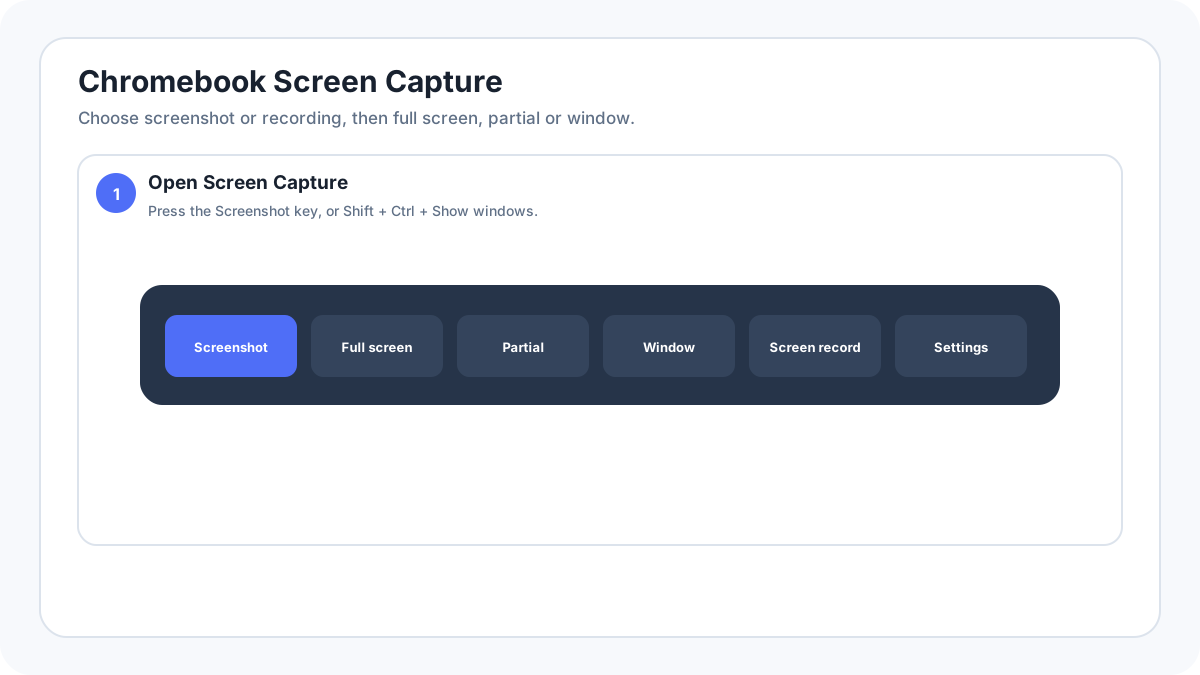
Fastest method: Screenshot key if present, or ShiftCtrlShow windows
What happens: Opens ChromeOS Screen Capture so you can choose full screen, partial or window capture.
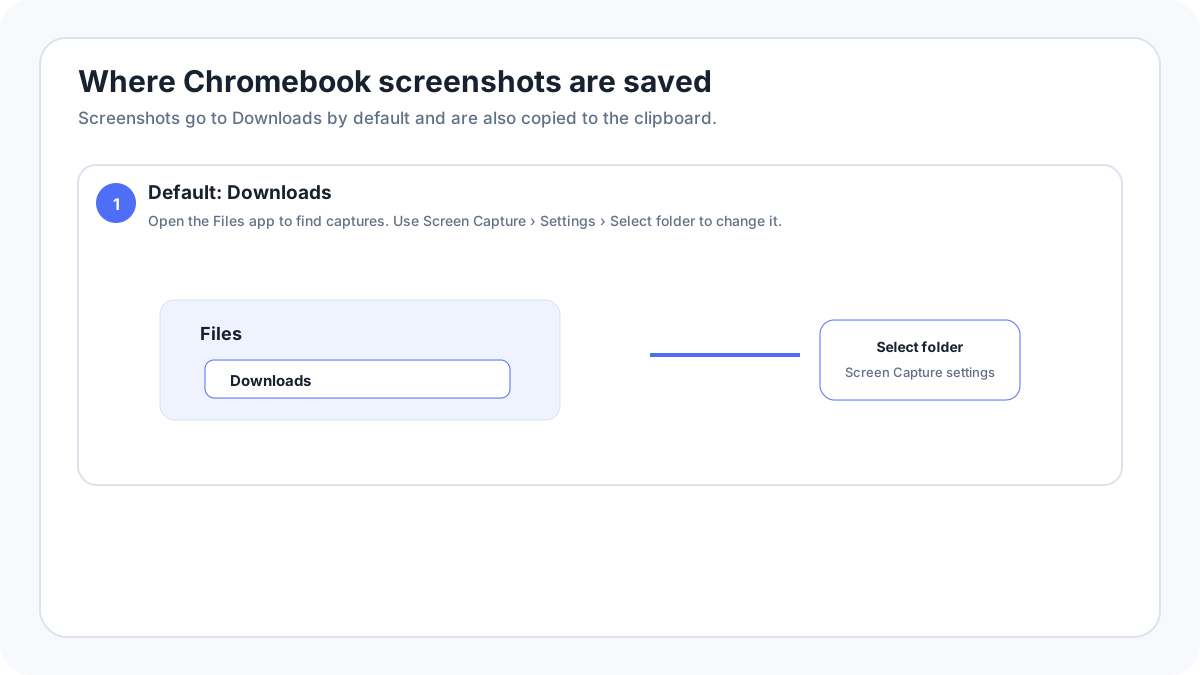
Saved to: Downloads by default; ChromeOS lets you choose another folder.
Chromebook screenshot methods at a glance
| Situation | Method |
|---|---|
| Keyboard has a Screenshot key | Press the Screenshot key |
| Standard Chromebook keyboard | ShiftCtrlShow windows opens Screen Capture |
| Quick full screenshot shortcut | CtrlShow windows |
| External keyboard without Show windows | CtrlShiftF5 opens Screen Capture |
| Chromebook tablet | PowerVolume Down |
| Stylus equipped Chromebook | Stylus menu › Capture region / Capture screen |
Use Screen Capture for the most control
- Press the Screenshot key if your Chromebook has one. Otherwise press ShiftCtrlShow windows.
- Choose Screenshot rather than Screen record.
- Select Full screen, Partial or Window.
- Capture the image. ChromeOS also copies screenshots to the clipboard.
- Open the notification/preview or Files app to use the saved screenshot.
Where is the Show windows key?
On a typical Chromebook keyboard, Show windows uses a rectangle/window style icon and occupies the function row area where F5 would exist on a conventional PC keyboard. If you connect a keyboard that has no Show windows key, Google documents CtrlShiftF5 as the alternative for opening capture tools.
Take a partial screenshot with keyboard only
ChromeOS includes keyboard accessibility within the capture tool. Google documents using Tab to move focus through screenshot controls and arrow keys to adjust the selected region when its handles are focused. This is useful when a mouse or trackpad is not convenient.
Chromebook tablet screenshot
In tablet mode, press PowerVolume Down. Google also documents on screen Screen capture access through the status/quick settings interface on supported tablets.
Screenshot with a stylus
On compatible Chromebooks, open the stylus tools and choose Capture region for part of the screen or Capture screen for the full display. This can be faster than a keyboard shortcut when you are already using the device as a tablet.
Where Chromebook screenshots are saved?
Google says screenshots and recordings are saved to Downloads by default. Open Screen Capture › Settings › Select folder to change the destination. Screenshots are also copied to the clipboard automatically.
Record your Chromebook screen or make a GIF
Open Screen Capture and switch to Screen record. ChromeOS supports full screen, partial and window recording. Google’s current documentation also describes GIF output for partial recordings. GIF captures do not include audio, while normal video recording can expose audio/camera options depending on the device and settings.
Chromebook screenshot not working
- Use the status area Screen capture control if you cannot identify the keyboard key.
- Try ShiftCtrlShow windows rather than CtrlShow windows when you need the full toolbar.
- On an external keyboard, use CtrlShiftF5.
- Check whether a managed school/work Chromebook restricts screen capture.
- Test a normal Chrome tab if one protected app or media surface appears black.
- Check the selected save folder if the screenshot succeeds but the file is not where you expected.
More Chromebook and browser guides
Verification source: Google Chromebook Help, Take a screenshot or record your screen. Interface wording can vary slightly by OS build, manufacturer and keyboard layout.