
How to Take a Screenshot on Windows?
Complete Windows screenshot guide: Snipping Tool, Print Screen, one window capture, save locations, editing, recording, scrolling screenshots and troubleshooting.
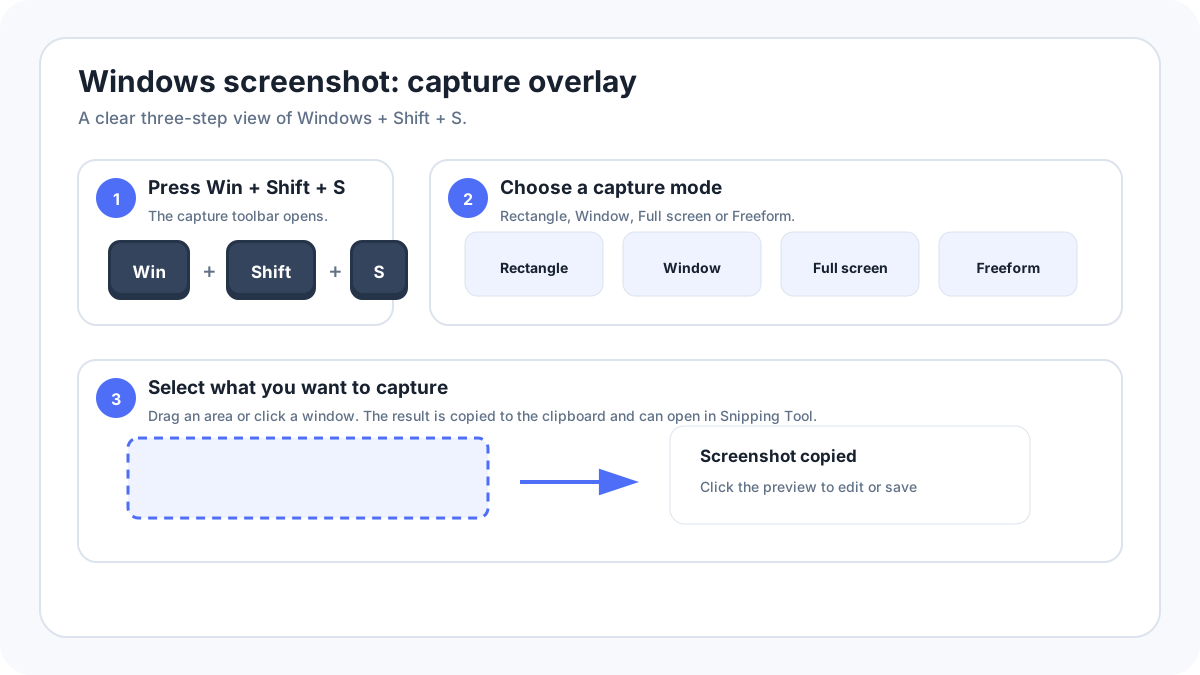
Fastest method: Win + Shift + S
What happens: Opens the Windows Snipping Tool overlay. Choose Rectangle, Window, Full screen or Freeform, then capture what you need.
Saved to: The capture is copied to the clipboard; Snipping Tool can also save it as a file.
Windows screenshot shortcuts at a glance
| Method | What it captures | Where it goes |
|---|---|---|
| WindowsShiftS | Selected area, one window, full screen or freeform shape | Clipboard and Snipping Tool workflow |
| PrtScn | Usually the entire desktop | Clipboard, unless Windows is configured to open Snipping Tool |
| AltPrtScn | The active window | Clipboard |
| WindowsPrtScn | Entire desktop | Usually Pictures › Screenshots |
| WindowsShiftR | A selected video region in current Snipping Tool | Snipping Tool recording workflow |
Method 1: use WindowsShiftS for most screenshots
This is the best general purpose method on Windows 11 and Windows 10 because you do not need to remember where the Print Screen key is located. It also avoids capturing more of the desktop than you need.
- Arrange the windows or content you want to capture.
- Press WindowsShiftS. The screen dims and the capture toolbar appears.
- Choose Rectangle to drag around an area, Window to capture one app window, Full screen for everything, or Freeform for an irregular shape.
- Complete the selection. Windows copies the result to the clipboard and normally shows a notification/preview.
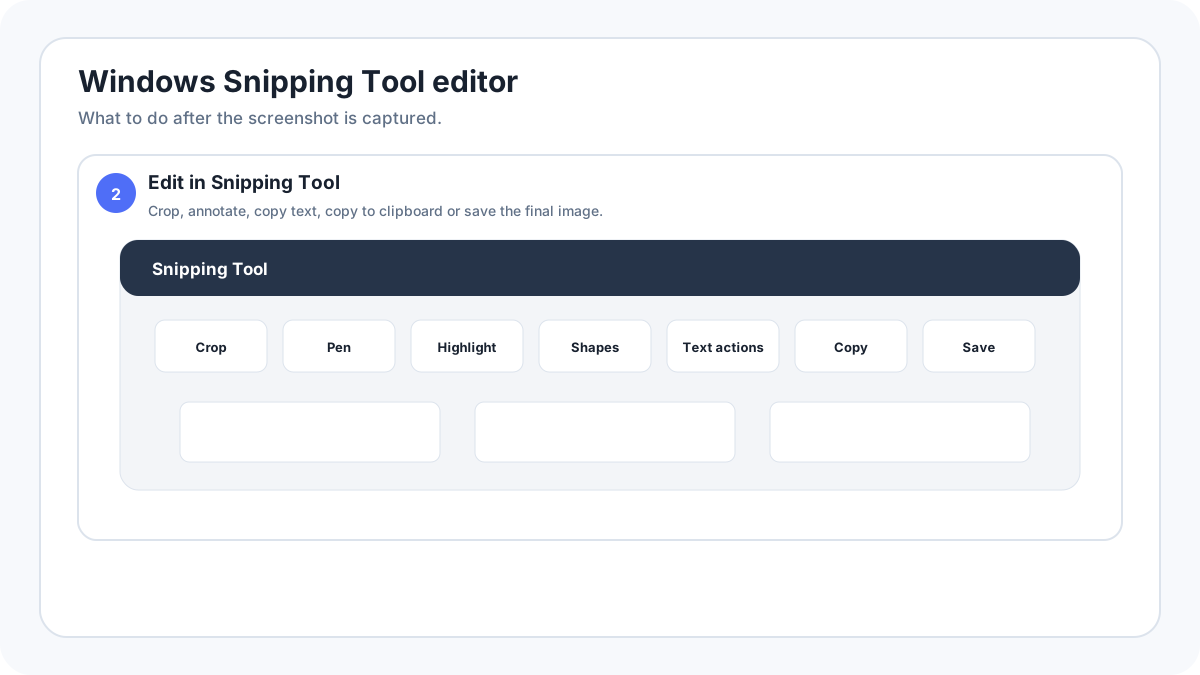
- Open the notification to crop, annotate, copy text, save or share the screenshot in Snipping Tool.
Rectangle, Window, Full screen and Freeform explained
Rectangle mode
Use Rectangle for a dialog box, chart, error message, part of a webpage or any rectangular region. Drag from one corner to the opposite corner. This is usually cleaner than taking the whole screen and cropping later.
Window mode
Use Window mode when you want exactly one application window. It is especially useful when several windows overlap because Windows isolates the one you click rather than including the rest of the desktop.
Full screen mode
Full screen captures the complete desktop visible to Windows. With multiple monitors, a full desktop capture can include more than one display depending on the method. If you need only one monitor, Rectangle mode is usually safer.
Freeform mode
Freeform lets you draw an irregular boundary. It can be useful for quick markup or unusual shapes, but Rectangle normally produces a cleaner image for documentation.
Method 2: Use the Print Screen key
The Print Screen key may be labelled PrtSc, PrtScn, Print Scr or similar. On compact laptops it can share a function row key and require Fn. Windows can also be configured so pressing Print Screen opens screen snipping instead of performing the classic full screen clipboard capture.
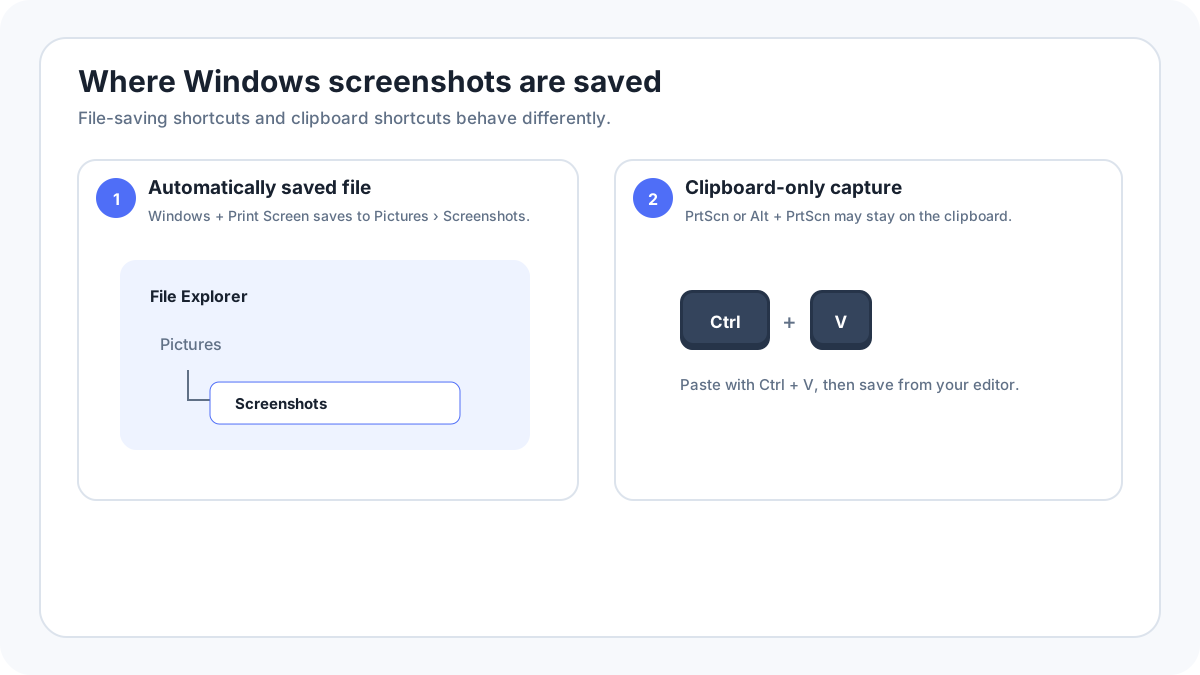
- PrtScn: normally copies the complete desktop to the clipboard. Paste it with CtrlV into Paint, Word, an email, chat or image editor.
- AltPrtScn: copies only the active window to the clipboard.
- WindowsPrtScn: normally saves a full screen screenshot directly to Pictures › Screenshots.
- No PrtScn key: on supported Windows devices Microsoft documents FnWindowsSpace as a hardware alternative; WindowsShiftS remains the more universal solution.
Where are Windows screenshots saved?
The answer depends on the shortcut. A clipboard capture is not a normal image file until you paste or save it. WindowsPrtScn normally creates a file in Pictures › Screenshots. Snipping Tool can save to a folder you choose and current versions can remember its saving behavior. If you use OneDrive screenshot backup or another sync application, the effective location may also be influenced by that setup.
How to screenshot one window without the desktop?
Open WindowsShiftS, choose Window, then click the desired window. The classic alternative is AltPrtScn, which copies the active window to the clipboard. Window mode is usually easier when you want a clean file and do not want to paste into another application first.
How to screenshot only one monitor?
Windows does not have one universally reliable keyboard shortcut that means “save exactly this monitor” across every layout. Open Snipping Tool and use Rectangle to drag around the target monitor, or use a third party capture utility that explicitly supports per monitor capture. This avoids accidentally including a second monitor or private material displayed on it.
How to capture a menu, tooltip or right click menu?
Some menus disappear as soon as you press another key. Open Snipping Tool first and use its Delay option, then open the menu during the countdown. Microsoft documents delays of several seconds in Snipping Tool, which is ideal for context menus and hover states.
How to take a scrolling screenshot on Windows?
Windows Snipping Tool captures what is visible; it is not a universal long page stitching tool for every app. For a long webpage, use a browser feature such as Firefox full page capture or a browser specific capture command. For a long desktop application, either use that application’s export/print feature, use a trusted scrolling capture utility, or make overlapping captures and combine them carefully. We keep a separate Windows scrolling screenshot guide because the correct method changes by app and browser.
Edit, annotate and copy text from a screenshot
Current Snipping Tool lets you crop, draw with a pen, highlight, add shapes or emojis in supported versions, erase annotations and use Text actions to extract text from an image. Some current Windows 11 Copilot+ PCs also expose additional features such as Perfect Screenshot and Color Picker. Hardware- or build specific features should not be confused with the basic screenshot workflow that works on ordinary Windows PCs.
Record the screen instead of taking a still image
Current Snipping Tool can record a rectangular video region. Press WindowsShiftR or switch Snipping Tool to Record, choose the area and start recording. A recording is better than a screenshot when you need to show motion, timing or a sequence of clicks.
Windows screenshot not working: complete checklist
- Try WindowsShiftS before assuming the Print Screen key is broken.
- If PrtScn shares another key, try the Fn key or inspect the keyboard legend.
- Open Snipping Tool directly from Start. If it works, the problem is likely the shortcut rather than screen capture itself.
- Check Settings for the option that controls whether Print Screen opens screen snipping.
- Close utilities that remap keyboard shortcuts, gaming overlays or clipboard tools temporarily.
- Test on the Windows desktop. If screenshots fail only inside one protected app, the application may intentionally block capture.
- Check free storage if a screenshot appears to work but no file is saved.
- Repair/reset Snipping Tool from Windows app settings if the application itself does not open correctly.
- On managed work or school PCs, screenshot policies may be controlled by an administrator.
FAQs
What is the easiest screenshot shortcut on Windows 11?
For most people, WindowsShiftS is the easiest because it opens the capture overlay and lets you decide what to capture after the shortcut is pressed.
Why did PrtScn not create a file?
The classic PrtScn behavior copies the image to the clipboard. Paste it into an application or use WindowsPrtScn for an automatically saved full screen file.
Can I take screenshots without a keyboard?
Yes. Open Snipping Tool from the Start menu and use its on screen controls. This is also a useful accessibility option when a hardware key is unavailable.
Can Windows capture protected video?
Some streaming, security and enterprise applications deliberately block or blank screenshots. Use the application’s approved sharing/export options instead of trying to bypass a protection.
More Windows screenshot guides
- Windows 11 screenshots
- Snipping Tool
- Scrolling screenshots on Windows
- Where Windows screenshots are saved
- Screenshot one window
- Screenshot multiple monitors
Verification source: Microsoft Support, Use Snipping Tool to capture screenshots. Interface wording can vary slightly by OS build, manufacturer and keyboard layout.