
How to Screenshot One or Multiple Monitors on Windows?
Capture one monitor, all monitors or a selected region across multiple displays without exposing the wrong screen.
With several monitors, the important question is whether you want one display, one app window or the entire virtual desktop. Full desktop methods can include more than one monitor, so choose the capture mode before sharing anything sensitive.
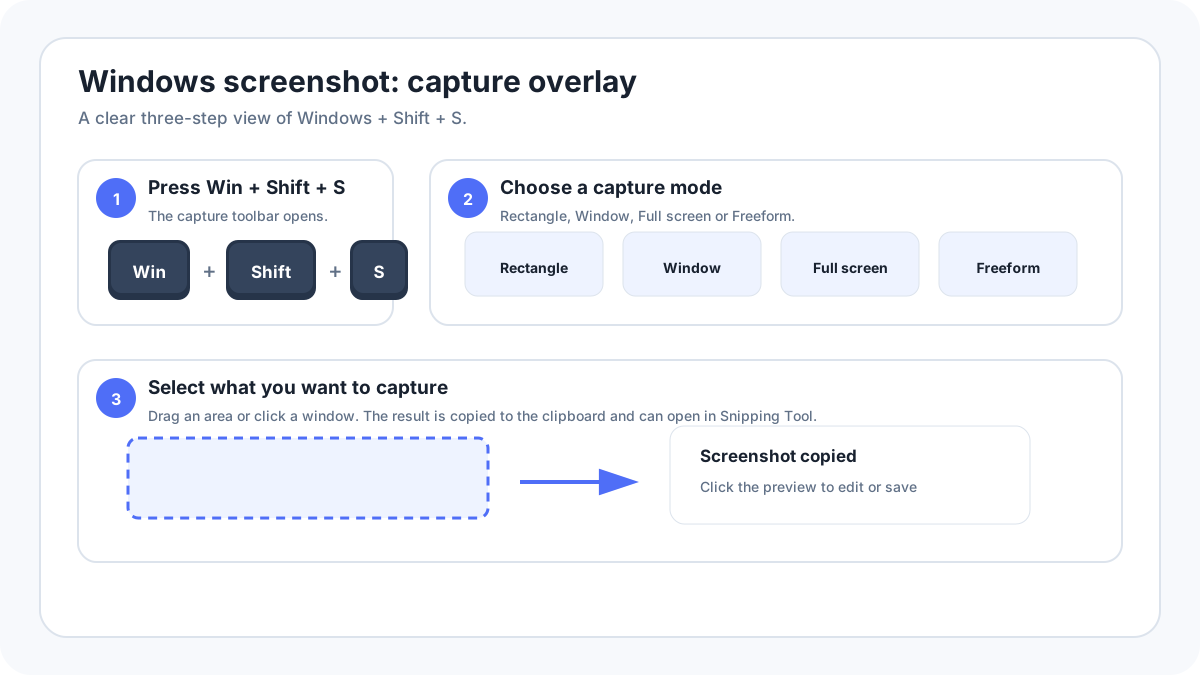
How do you screenshot only one monitor?
- Press WindowsShiftS.
- Choose Rectangle mode.
- Drag around the full bounds of the monitor you want to capture.
- Open the result in Snipping Tool and check the edges before saving.
Windows does not provide one universal keyboard shortcut that always means “save exactly this monitor” on every hardware layout. Rectangle mode is the safest built in method because you decide the exact region.
How do you capture one app on one monitor?
Use Snipping Tool Window mode and click the target app, or make the app active and press AltPrtScn. This avoids the monitor question entirely because only the chosen window is captured.
How do you capture all monitors?
A classic full desktop Print Screen capture can include the combined virtual desktop across connected displays. The resulting image can be very wide if the monitors sit side by side or have different resolutions. Review it carefully because it can include private information from another screen.
Why can multi monitor screenshots look misaligned?
Windows can arrange displays with different resolutions, scaling levels and physical positions. A full virtual desktop screenshot reflects that logical layout, so one monitor can appear higher or lower in the combined image. This is normal and does not mean the screenshot file is damaged.
What if the monitors use different scaling?
Text and interface elements can have different apparent sizes when monitors use different scaling settings. If you need a clean documentation image, capture only the relevant monitor or window instead of shrinking a very wide combined desktop screenshot.
Privacy checklist for multiple displays
- Move private apps away from any monitor that might be included.
- Use Window or Rectangle mode for support screenshots.
- Check browser tabs, chat windows and notification areas on every included screen.
- Do not assume cropping later will be remembered. Capture only what you need at the start.
FAQ
Does Print Screen capture both monitors?
On many multi monitor Windows setups, a full desktop Print Screen captures the combined virtual desktop. The exact result depends on the capture method and display arrangement.
Can Snipping Tool capture across two monitors?
Rectangle mode can select a region that spans more than one display when the desktop arrangement allows it. For clarity, capture only the needed area whenever possible.