
How to Screenshot One Window on Windows?
Capture one application window on Windows without the desktop, taskbar or other open apps.
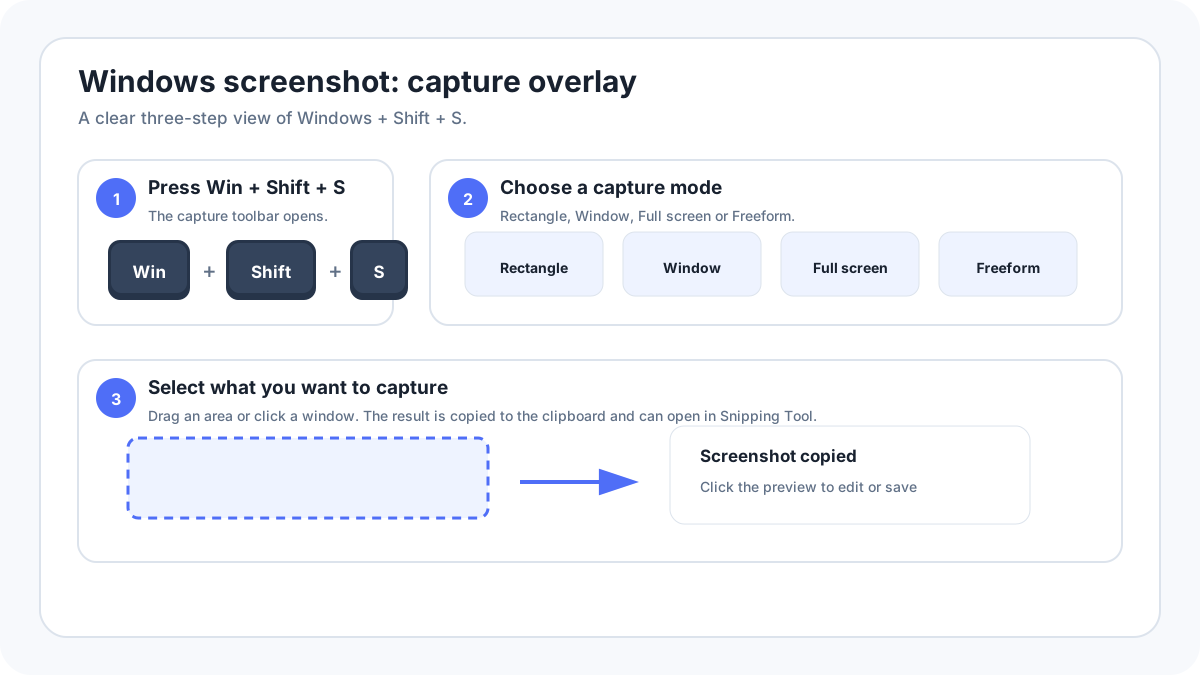
Capturing one window gives you a cleaner image than taking the whole desktop and cropping it later. Windows offers two strong built in methods: Snipping Tool Window mode and AltPrtScn.
Method 1: use Snipping Tool Window mode
- Put the window you want to capture on screen.
- Press WindowsShiftS.
- Choose Window mode in the capture toolbar.
- Click the application window you want.
- Open the capture in Snipping Tool to crop, annotate, copy or save.
Why is Window mode usually the easiest method?
Window mode isolates the chosen application and avoids accidentally including another app, the desktop wallpaper or content from a second monitor. It also keeps the capture inside the Snipping Tool workflow, which is convenient when you need a saved file rather than a clipboard only image.
Method 2: use AltPrint Screen
- Click the target window so it becomes the active window.
- Press AltPrtScn.
- Open Paint, Word, email or another destination.
- Press CtrlV to paste the captured window.
- Save the image if you need a permanent file.
What if the laptop has no obvious Print Screen key?
Compact keyboards can share Print Screen with another function row key and may require Fn. If you cannot identify the correct key, use WindowsShiftS and Window mode instead. It is more consistent across laptops and external keyboards.
How do you capture a menu or popup inside one window?
Temporary menus can close when the screenshot shortcut is pressed. Open Snipping Tool first and use a delay, then open the menu during the countdown. This is useful for right click menus, tooltips and dropdowns that disappear when focus changes.
What if Window mode captures the wrong window?
- Move overlapping windows apart so the target is easy to identify.
- Make sure the target is not minimized.
- Use Rectangle mode if the app uses several separate floating panels.
- For a browser dialog or system popup, a delayed rectangle capture can be more predictable than Window mode.
Privacy check before sharing
One window capture reduces accidental exposure, but still inspect tabs, account names, document titles, sidebars and notifications inside the captured app. Crop or redact unrelated private information before sharing.
More Windows guides
Verification source: Microsoft Support: Copy the window or screen contents. Interface wording can vary slightly by OS build, manufacturer and keyboard layout.