
How to Take a Screenshot in GNOME?
Detailed GNOME screenshot and screencast guide with selection, screen, window, save folder, clipboard and keyboard controls.
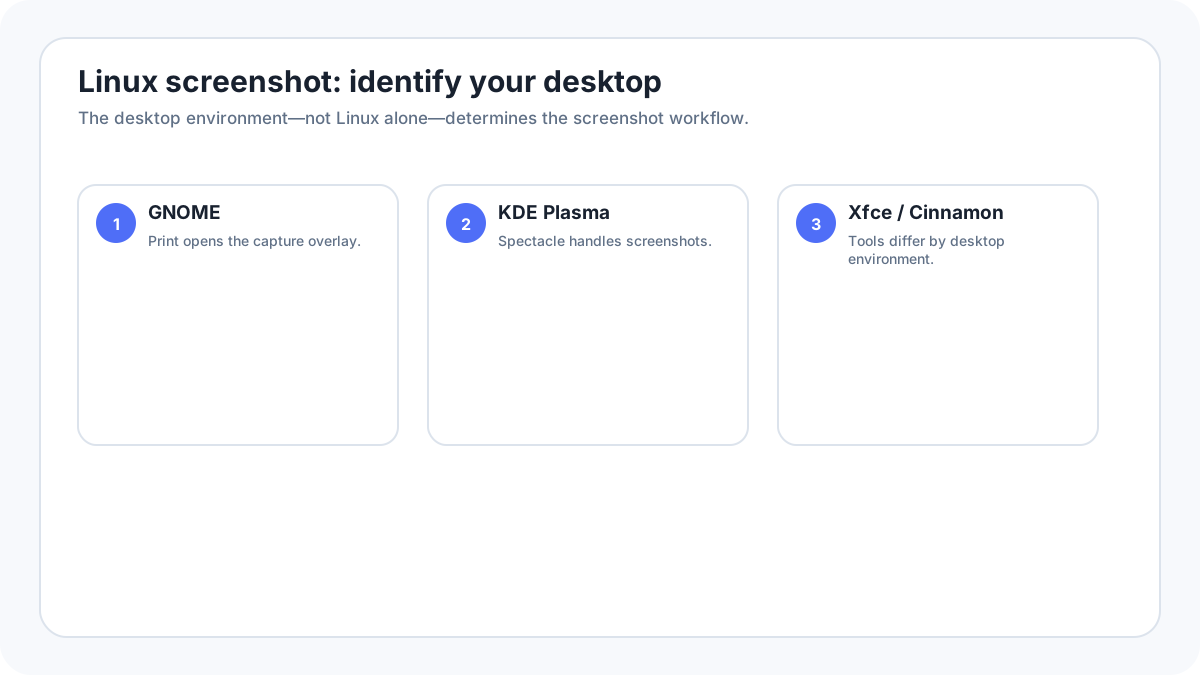
GNOME integrates screenshots and screencasts into one shell overlay. The Print key is the normal starting point on current GNOME versions.
How to take a screenshot in GNOME?
- Press Print or use the screenshot control in the system menu.
- Choose Selection, Screen or Window.
- Use the pointer/crosshair to select when needed.
- Press the capture button or use the supported keyboard confirmation.
Where screenshots are saved?
GNOME documentation says screenshots are automatically saved to Pictures/Screenshots and also placed on the clipboard. Screencasts go to Videos/Screencasts.
Selected area, one window and full screen
Prefer the desktop’s built in capture modes because they integrate correctly with the current compositor/session. This is especially important on Wayland, where old X11-style tools may not have unrestricted access to the screen.
Clipboard behavior
Some desktop screenshot workflows both save a file and copy the image to the clipboard; others do one or the other depending on the shortcut. If no file appears, try pasting into an image editor before assuming the capture failed.
Wayland and X11
If a third party screenshot tool works on X11 but fails on Wayland, verify that the installed version supports the desktop portal/compositor rather than weakening the system configuration just to accommodate an outdated capture method.
Troubleshooting
- Open the screenshot utility from the application launcher to separate an app problem from a shortcut problem.
- Check the desktop keyboard shortcut settings for a remapped Print key.
- Test a simple desktop capture before troubleshooting one protected or sandboxed app.
- Confirm the save folder and clipboard behavior.
- Update the screenshot utility from the distribution’s trusted package source if your desktop release expects a newer version.
Additional details
Within the GNOME capture UI, keyboard controls can switch between selection, screen, window, pointer visibility and screenshot/screencast modes. Exact visual layout can change across GNOME releases.