
Linux पर स्क्रीनशॉट कैसे लें
Linux गाइड: GNOME, KDE Plasma, Ubuntu, Print Screen, Wayland, save location और troubleshooting।
सबसे तेज़ तरीका: Print Screen
क्या होता है: आमतौर पर आपके desktop environment द्वारा दिया गया screenshot tool खोलता या trigger करता है।
कहाँ सेव होता है: Folder और clipboard behavior GNOME, KDE Plasma, Xfce, Cinnamon और चुनी utility पर निर्भर करता है।
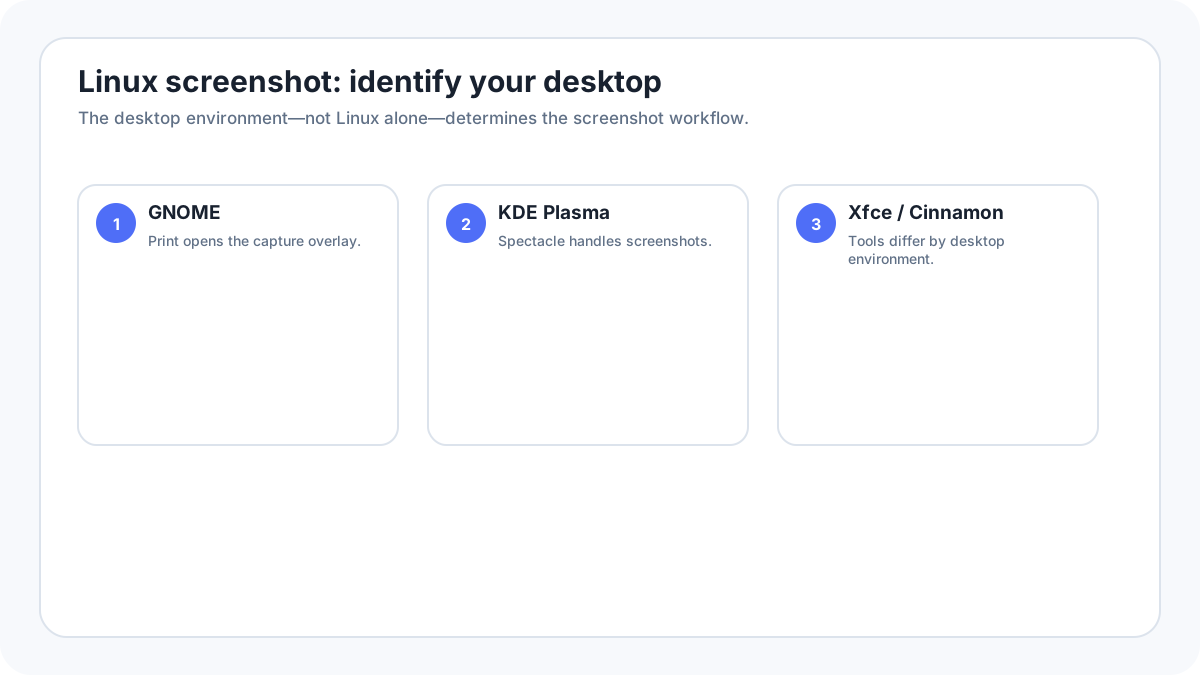
Linux में एक ही screenshot system नहीं है
एक Linux distribution अलग अलग desktop environments चला सकती है और हर environment अपना screenshot tool दे सकता है। Ubuntu सामान्यतः GNOME इस्तेमाल करता है, KDE Plasma में Spectacle होता है, Linux Mint अक्सर Cinnamon इस्तेमाल करता है और lightweight systems Xfce इस्तेमाल कर सकते हैं। Wayland और X11 भी third party screenshot tools के behavior को प्रभावित कर सकते हैं। इसलिए reliable Linux guide पहले desktop पहचानता है, केवल एक shortcut देकर उसे universal नहीं मानता।
GNOME screenshot workflow
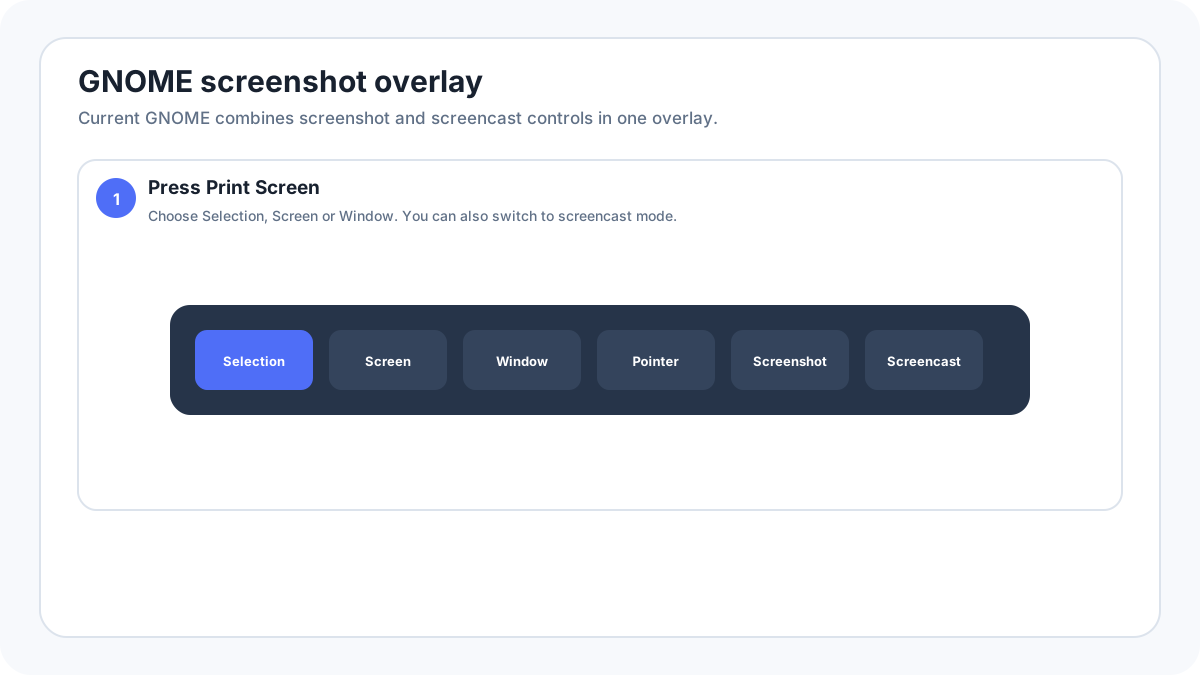
मौजूदा GNOME documentation के अनुसार Print दबाने पर screenshot overlay खुलता है। वहाँ selected area, पूरी screen या window capture की जा सकती है और still screenshot तथा screencast modes के बीच switch किया जा सकता है।
- Print Screen दबाएँ।
- Selection, Screen या Window चुनें।
- Selection के लिए handles/crosshair को target area के चारों ओर drag करें।
- Screenshot capture करें। Current documented workflow में GNOME इसे Pictures/Screenshots में save करता है और clipboard पर भी रखता है।
KDE Plasma और Spectacle
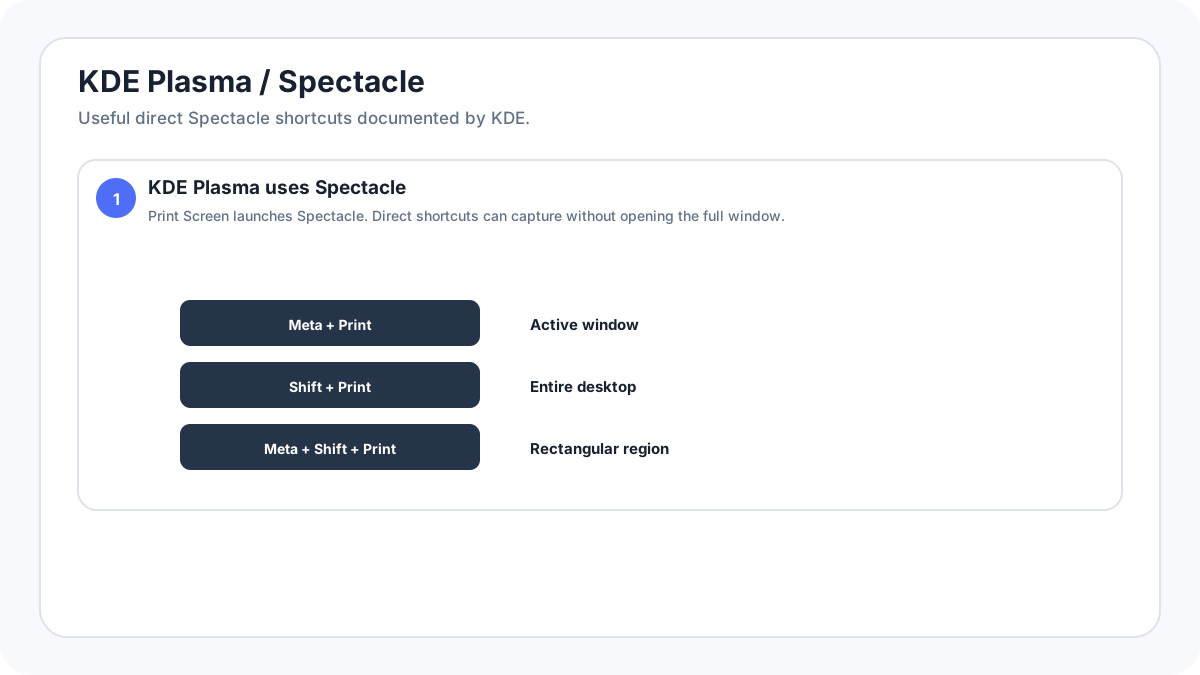
KDE Plasma Spectacle इस्तेमाल करता है। KDE Print Screen से Spectacle launch करने और full interface खोले बिना सीधे capture/save करने के कई shortcuts document करता है।
| KDE shortcut | Action |
|---|---|
| Print Screen | Spectacle launch करें |
| MetaPrint Screen | Active window capture करें |
| ShiftPrint Screen | पूरा desktop/all monitors capture करें |
| MetaShiftPrint Screen | Rectangular region capture करें |
Ubuntu screenshots
GNOME इस्तेमाल करने वाले modern Ubuntu releases सामान्यतः ऊपर दिए GNOME workflow को follow करते हैं। Older Ubuntu versions या दूसरे desktop वाली installations अलग behave कर सकती हैं। यदि कोई web guide पुराने standalone screenshot program का तरीका बताए लेकिन आपका system modern overlay खोलता है, तो current desktop interface follow करें।
Wayland बनाम X11
Wayland, X11 की तुलना में arbitrary screen access को जानबूझकर अधिक restrict करता है। पुराने utilities जो screen को सीधे पढ़ते थे, Wayland पर fail या अलग behave कर सकते हैं। Desktop environment का built in screenshot portal/tool या ऐसी utility इस्तेमाल करें जो स्पष्ट रूप से आपके Wayland session को support करती हो। केवल outdated screenshot tool चलाने के लिए Wayland disable न करें जब तक broader security/compatibility tradeoff न समझें।
Flameshot और third party screenshot utilities
Selection के तुरंत बाद annotation चाहिए तो Flameshot लोकप्रिय option है। Support distribution, display server और package version के अनुसार बदल सकता है। जहाँ संभव हो trusted distribution repository से install करें और global shortcut assign करने से पहले current Wayland/X11 session में test करें।
Linux screenshots कहाँ save होते हैं
Current GNOME में screenshots Pictures/Screenshots के तहत documented हैं। Spectacle में configurable save locations हैं। दूसरे desktops/tools Pictures, home folder या custom directory इस्तेमाल कर सकते हैं। यदि Print Screen काम करता दिखे लेकिन file न मिले तो यह भी जाँचें कि tool ने केवल clipboard पर copy तो नहीं किया।
Linux पर scrolling screenshots
Full page webpage सामान्यतः browser से capture करना बेहतर है। Long desktop applications के लिए universal scrolling screenshot uncommon है क्योंकि applications content को अलग तरह render करती हैं। Application export/print function, webpages के लिए browser full page capture, या आपके desktop/session के साथ compatible trusted scrolling utility इस्तेमाल करें।
Linux screenshot काम नहीं कर रहा
- पहले desktop environment पहचानें: GNOME, KDE Plasma, Xfce, Cinnamon या अन्य shell।
- Print Screen दबाकर देखें कि overlay खुलता है या नहीं।
- Screenshot application को app launcher से सीधे खोलें ताकि app problem और keyboard shortcut problem अलग की जा सके।
- Settings › Keyboard shortcuts में remapped या disabled capture bindings देखें।
- Third party tool केवल Wayland पर fail करे तो उसकी Wayland integration support जाँचें।
- Save location settings और clipboard behavior जाँचें।
- Managed systems पर security policies capture restrict कर सकती हैं।
और Linux screenshot guides
सत्यापन स्रोत: GNOME Help, Screenshots और screencasts. इंटरफ़ेस के शब्द सिस्टम संस्करण, निर्माता और कीबोर्ड लेआउट के अनुसार थोड़ा बदल सकते हैं।