
How to Take a Screenshot on Microsoft Surface?
Complete Microsoft Surface screenshot guide for Surface Pro, Laptop, Go, Book and Studio with keyboard, touch, hardware buttons, saving and recording.
Surface screenshot methods depend on whether you are using the device like a laptop, with a Surface keyboard, or as a tablet. For current Windows Surface devices, WindowsShiftS is the most consistent starting point because it opens Snipping Tool regardless of whether the keyboard has a dedicated Print Screen key.
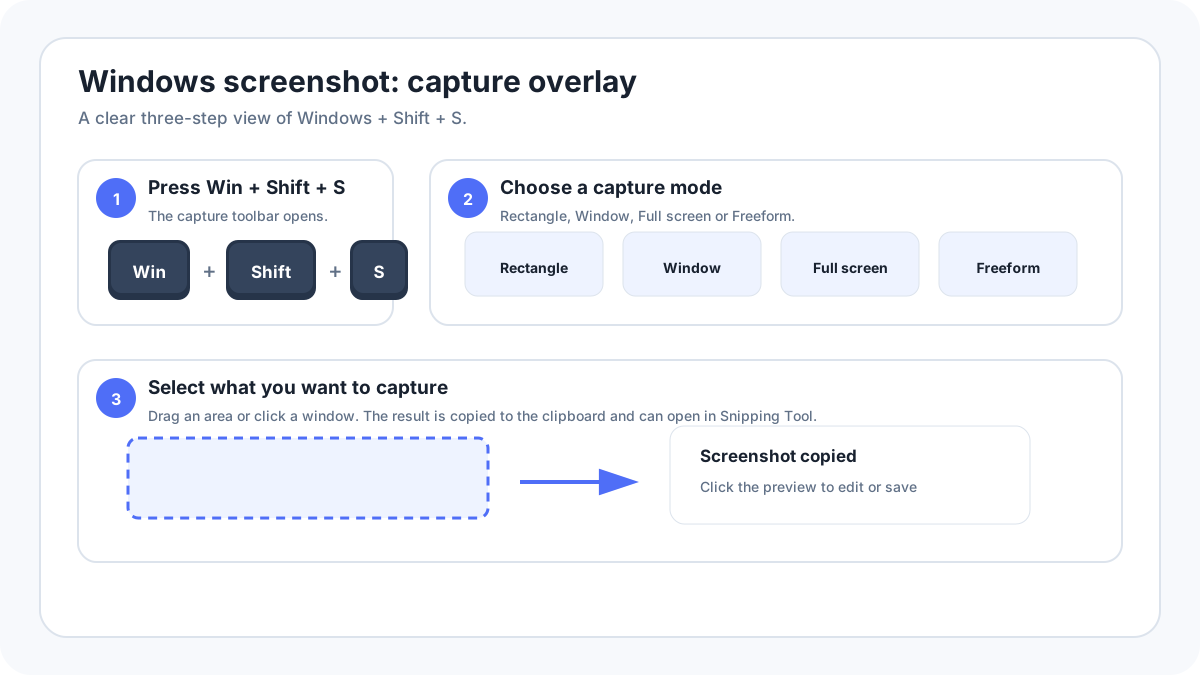
Quick Surface screenshot methods
| Surface setup | Method |
|---|---|
| Surface with Windows keyboard | WindowsShiftS |
| Keyboard with Snipping key | Press the Snipping key |
| Save full screen automatically | WindowsPrtScn or Windows + Snipping key where supported |
| Supported Surface tablet hardware | Hold Power, then press Volume Up |
| Surface Duo / Duo 2 | PowerVolume Down |
Method 1: WindowsShiftS
- Open the screen you want to capture.
- Press WindowsShiftS.
- Choose Rectangle, Window, Full screen or Freeform.
- Select the content.
- Open the Snipping Tool notification/preview to crop, annotate, copy or save.
Method 2: use a Surface keyboard screenshot key
Some Microsoft Surface keyboards include a dedicated Snipping/screenshot key. Microsoft documents that this key opens the screenshot experience. If the top row key is currently acting as F1–F12 because Function Lock is enabled, press Fn as needed to return to the special key behavior.
Method 3: save a full screen file
On supported Surface keyboard layouts, WindowsPrtScn or Windows + the Snipping key can save a screenshot automatically. Look in Pictures › Screenshots. If your keyboard has no PrtScn label, use Snipping Tool instead of guessing an Fn combination.
Method 4: Surface hardware buttons
Microsoft currently documents PowerVolume Up for supported Surface Pro, Surface Go, Surface Book and Surface Studio style devices. Microsoft specifically notes that this hardware shortcut does not apply to Surface Laptop. Hardware layouts vary by generation, so use the keyboard/Snipping Tool method when the combination is not documented for your exact model.
Surface Duo and Surface Duo 2
Surface Duo models run Android style software rather than standard desktop Windows. Microsoft documents PowerVolume Down for their screenshots. Images can appear in Google Photos or OneDrive screenshot collections depending on the apps you use.
Where Surface screenshots are saved?
- WindowsPrtScn / supported automatic save shortcut: Pictures › Screenshots.
- WindowsShiftS: the result is copied to the clipboard and can be opened in Snipping Tool; save it where you choose.
- Surface Duo: check Google Photos/OneDrive screenshot collections.
How to record the Surface screen?
On Windows 11, Snipping Tool can record a selected rectangular area; WindowsShiftR opens the recording overlay on current supported builds. Windows 10 users can use Microsoft supported recording options such as Clipchamp depending on the system configuration.
Surface screenshot troubleshooting
- If PowerVolume Up does nothing, confirm that Microsoft documents it for your Surface generation; it is not a universal Surface Laptop shortcut.
- If a top row screenshot key behaves like an F key, check the Fn/Function Lock state.
- If PrtScn is absent, use WindowsShiftS.
- If the capture exists only on the clipboard, paste it into Paint or another app.
- If screenshots fail in one protected app but work on the desktop, the app may intentionally block capture.
- For a detachable keyboard problem, open Snipping Tool from Start and use touch input.
More Windows screenshot guides
Verification source: Microsoft Support, Take a screenshot or record your screen on Surface. Interface wording can vary slightly by OS build, manufacturer and keyboard layout.