
How to Take a Screenshot on Windows 10?
A complete Windows 10 screenshot guide for Snipping Tool, Windows Shift S, Print Screen, one window, save locations and troubleshooting.
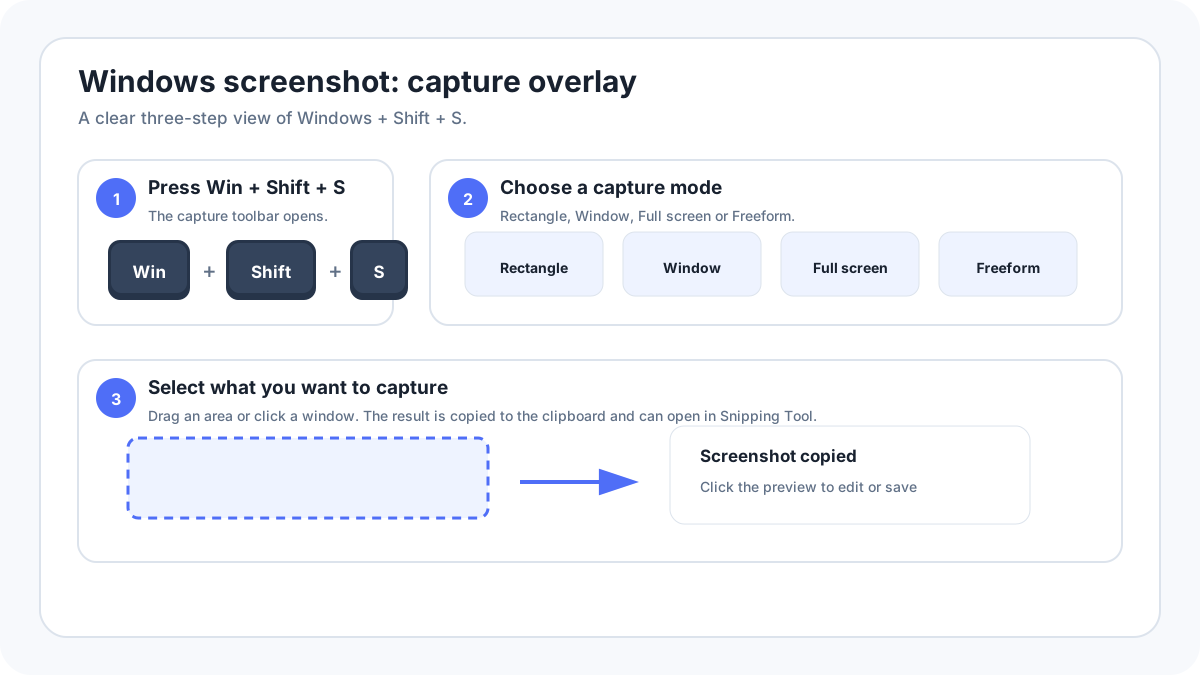
Windows 10 supports several built in screenshot methods. For most people, WindowsShiftS is the easiest place to start because it lets you choose an area, a window or the full screen without first finding the Print Screen key.
Fastest method: WindowsShiftS
What happens: Opens the screenshot overlay so you can choose a capture type.
Saved to: The result is copied to the clipboard and can be opened in Snipping Tool for saving or editing.
Which Windows 10 screenshot method should you use?
| Method | Best for | Result |
|---|---|---|
| WindowsShiftS | Most screenshots | Area, window, full screen or freeform capture |
| PrtScn | Fast full desktop copy | Clipboard image |
| AltPrtScn | One active window | Clipboard image |
| WindowsPrtScn | Saving the whole desktop immediately | File in Pictures › Screenshots on supported setups |
How do you use WindowsShiftS?
- Arrange the app or page you want to capture.
- Press WindowsShiftS.
- Choose Rectangle, Window, Full screen or Freeform if those modes are shown.
- Select the area or window.
- Open the notification or Snipping Tool to crop, annotate, copy or save the image.
How do you capture one window?
Use Window mode in the screenshot overlay when you want one application without the desktop around it. The classic alternative is AltPrtScn, which copies the active window to the clipboard so you can paste it with CtrlV.
Where are Windows 10 screenshots saved?
A screenshot is not always saved as a file. Print Screen and AltPrint Screen normally create a clipboard image. WindowsPrint Screen usually saves a file in Pictures › Screenshots. Snipping Tool lets you choose a location when you save the result. If OneDrive or another sync service is configured for screenshots, the effective location can differ.
How do you capture a menu or tooltip?
Open Snipping Tool and use its delay feature when a menu disappears as soon as you press another key. Start the delay, open the menu or tooltip, and wait for the capture interface to appear. This is cleaner than trying to press several shortcuts while keeping a temporary menu open.
How do you edit a Windows 10 screenshot?
Open the capture in Snipping Tool or paste it into Paint. Crop away unrelated areas, use simple annotations when they explain a step, and save a fresh copy if the original screenshot is evidence or documentation. Avoid shrinking text heavy screenshots so much that menus or error messages become unreadable.
What if the screenshot shortcut does not work?
- Try WindowsShiftS before troubleshooting the Print Screen key.
- On a laptop, Print Screen can share a function key and require Fn.
- Open Snipping Tool directly from Start to separate a shortcut problem from an app problem.
- Temporarily close keyboard remapping utilities or overlays that may intercept the shortcut.
- Test the shortcut on the desktop. If only one app blocks capture, the app may be intentionally restricting screenshots.
- Check free storage if a capture appears to work but no saved file can be found.
Windows 10 screenshot FAQ
Does Windows 10 have Snipping Tool?
Yes. Microsoft currently documents Snipping Tool for Windows 10 and Windows 11. The exact interface can differ between Windows 10 builds, but WindowsShiftS remains the most useful shortcut to remember.
Can I screenshot without a Print Screen key?
Yes. Use WindowsShiftS. It does not depend on the physical Print Screen key.
Why did my screenshot only copy instead of save?
Some shortcuts intentionally place the image on the clipboard. Paste it into an app and save it, or use a method that creates a file directly.
More Windows screenshot guides
Verification source: Microsoft Support: Use Snipping Tool to capture screenshots. Interface wording can vary slightly by OS build, manufacturer and keyboard layout.