
How to Use the Print Screen Key on Windows?
Detailed Print Screen guide for PrtScn, Alt + PrtScn, Windows + PrtScn, Fn keys, multiple monitors and clipboard behavior.
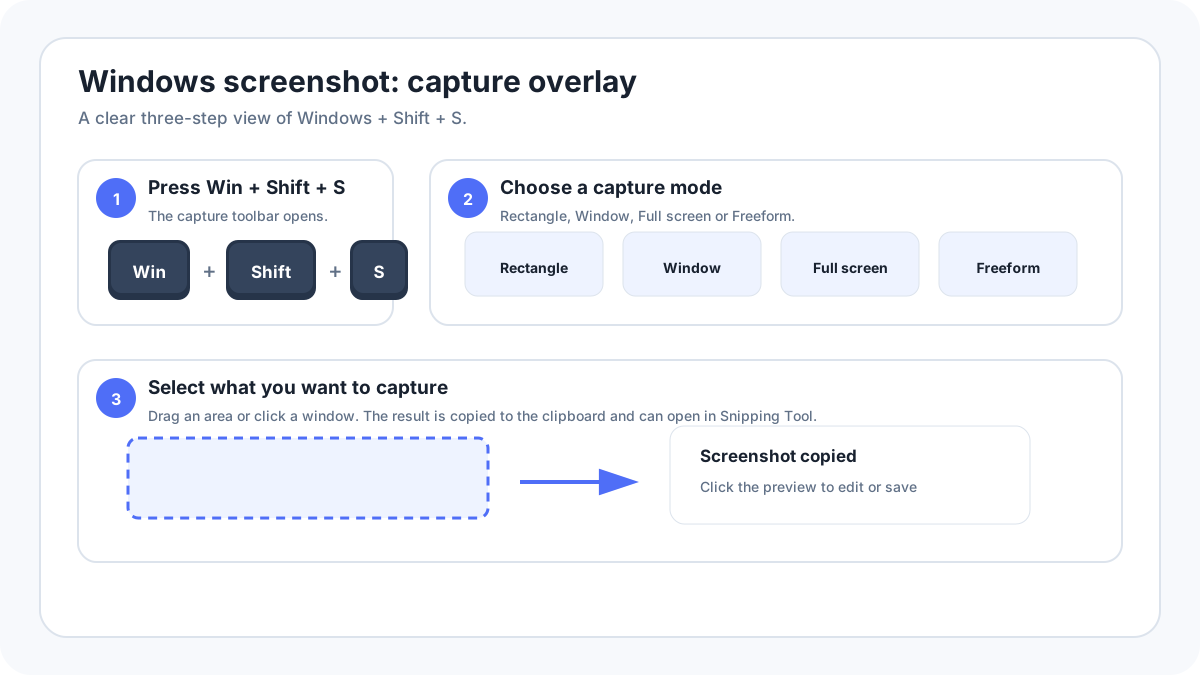
Print Screen is one of the oldest Windows screenshot methods, but its behavior depends on the shortcut, Windows settings and keyboard layout. The key can be labelled PrtSc, PrtScn, Print Scr, PrntScrn or with a screenshot icon.
Print Screen shortcuts
| Shortcut | Result |
|---|---|
| PrtScn | Usually copies the whole desktop to the clipboard |
| AltPrtScn | Copies the active window |
| WindowsPrtScn | Usually saves a full desktop file to Pictures › Screenshots |
| WindowsShiftS | Modern alternative that opens Snipping Tool |
| Fn + shared PrtScn key | Needed on some compact laptop layouts |
Why pressing PrtScn may not create a file?
The classic behavior is clipboard capture. Paste with CtrlV into Paint, Word, email or another compatible app. Use WindowsPrtScn when you specifically want the system to save a full screen file automatically.
Print Screen on laptops
Compact keyboards often put screenshot functionality on a shared function row key. Do not assume one universal Fn combination across HP, Dell, Lenovo, ASUS or other brands. Read the printed key legend and use WindowsShiftS if the layout is unclear.
Multiple monitors
A full desktop Print Screen capture can include the virtual desktop across more than one monitor. If you only need one monitor, use Snipping Tool Rectangle mode around that screen. If you only need one app, use Window mode or AltPrtScn.
Change Print Screen behavior
Current Windows settings can map the Print Screen key to open screen snipping. If an old guide says PrtScn should copy the entire desktop but your PC opens Snipping Tool instead, check the Windows accessibility/keyboard screenshot setting before treating it as an error.
If Print Screen does nothing
- Try WindowsShiftS.
- Try the Fn modifier if PrtScn is a secondary key function.
- Test an external keyboard.
- Check screenshot/keyboard settings for remapping.
- Close keyboard management utilities temporarily.
- Use Snipping Tool from Start as the hardware independent fallback.