
How to Take a Screenshot on Motorola Phones?
Complete Motorola screenshot guide with buttons, three finger gesture, long screenshots, Gallery/Photos and troubleshooting.
Motorola phones use the standard Android button shortcut and many models add Moto gesture controls, including a three finger screenshot option when supported and enabled.
Fastest screenshot method on Motorola
Press PowerVolume Down together and release after the capture animation.
Step by step button screenshot
- Open the exact screen you want to capture.
- Press Power/Side + Volume Down together. Release quickly after the capture response appears.
- Tap the screenshot preview/toolbar if you want to edit, share or extend the capture.
- Open the screenshot later from Google Photos/Gallery › Screenshots, depending on installed apps..
Other screenshot methods on Motorola
- Open Moto/Settings gesture controls and enable a supported three finger screenshot gesture.
- Use manufacturer screenshot controls exposed in Quick Settings or post capture UI when present.
- Use Android accessibility options if side buttons are difficult to use.
Scrolling / long screenshot
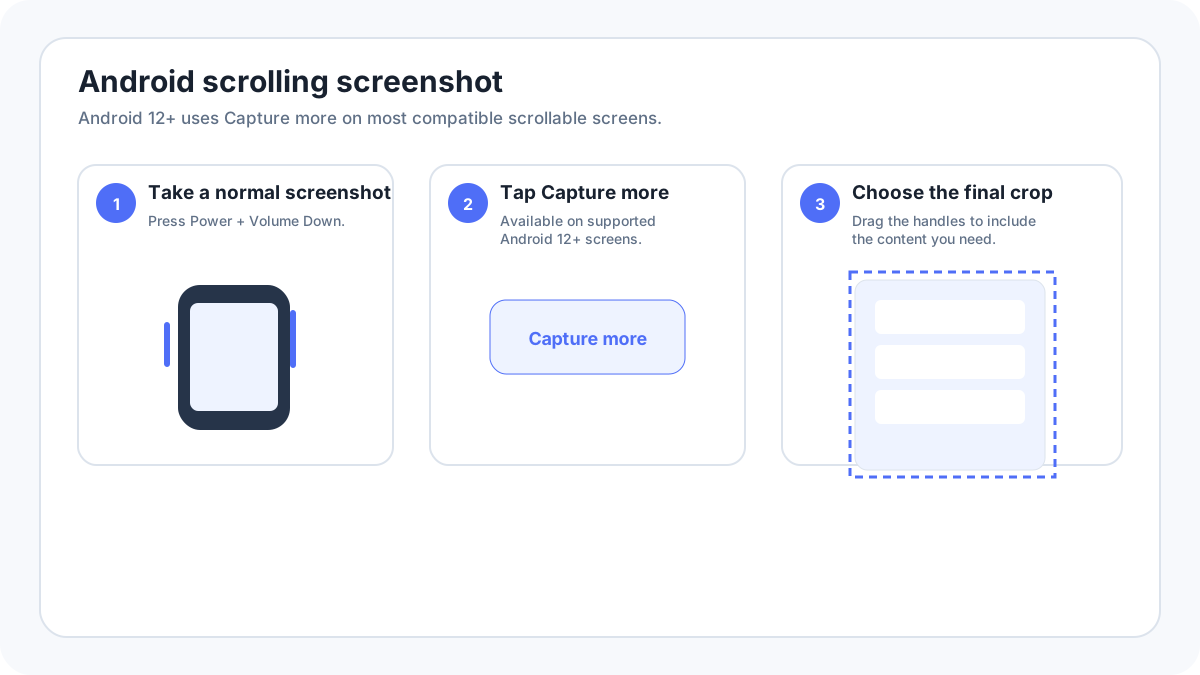
Supported Motorola software can expose extended/long screenshot controls after a normal capture. The name and exact interface depend on model and Android/Moto software version, so test on a clearly scrollable page.
Where screenshots are saved?
Google Photos/Gallery › Screenshots, depending on installed apps. If the image is not visible immediately, sort by newest items and check both the manufacturer Gallery app and Google Photos when both are installed.
Editing and sharing
Use the post capture toolbar for crop, markup, share and other options exposed by the current software version. Before sharing, inspect notification content, usernames, account details, browser tabs and location information. Long screenshots can reveal much more private material than the visible screen alone.
Brand specific details
Moto features vary by family and carrier build, so a gesture shown for one Edge, Moto G or Razr model should not be assumed on every Motorola phone.
If the screenshot shortcut does not work
- Test PowerVolume Down on the Home screen. If it works there, the original app may be blocking capture.
- Try a shorter simultaneous button press; holding too long can open power controls or adjust volume.
- Remove a tight case temporarily if it interferes with one of the side buttons.
- Search Settings for screenshot. Search Settings or the Moto app for “three finger screenshot” / “screenshot” if the gesture is not available by default.
- Restart the phone if the screenshot preview/toolbar is frozen or stops appearing.
- Check storage space if the animation occurs but no file is saved.
- On work managed devices, screenshot restrictions may be enforced by policy.
Can an app block screenshots?
Yes. Banking, private mode, streaming, password and enterprise apps can use secure screen controls. A black or blocked capture in one app is not necessarily a phone fault. Use the application’s supported export/share feature rather than trying to bypass a protection.