
How to Take a Screenshot on a realme Phone?
realme screenshot methods using Power + Volume Down, three finger capture, scrolling screenshots and Assistive Ball.
realme phones support the familiar Android PowerVolume Down shortcut, while realme UI adds screenshot gestures and scrolling capture on supported versions. The exact Settings labels differ between realme UI generations, so search the phone settings for “screenshot” when a menu name in an older guide does not match your device.
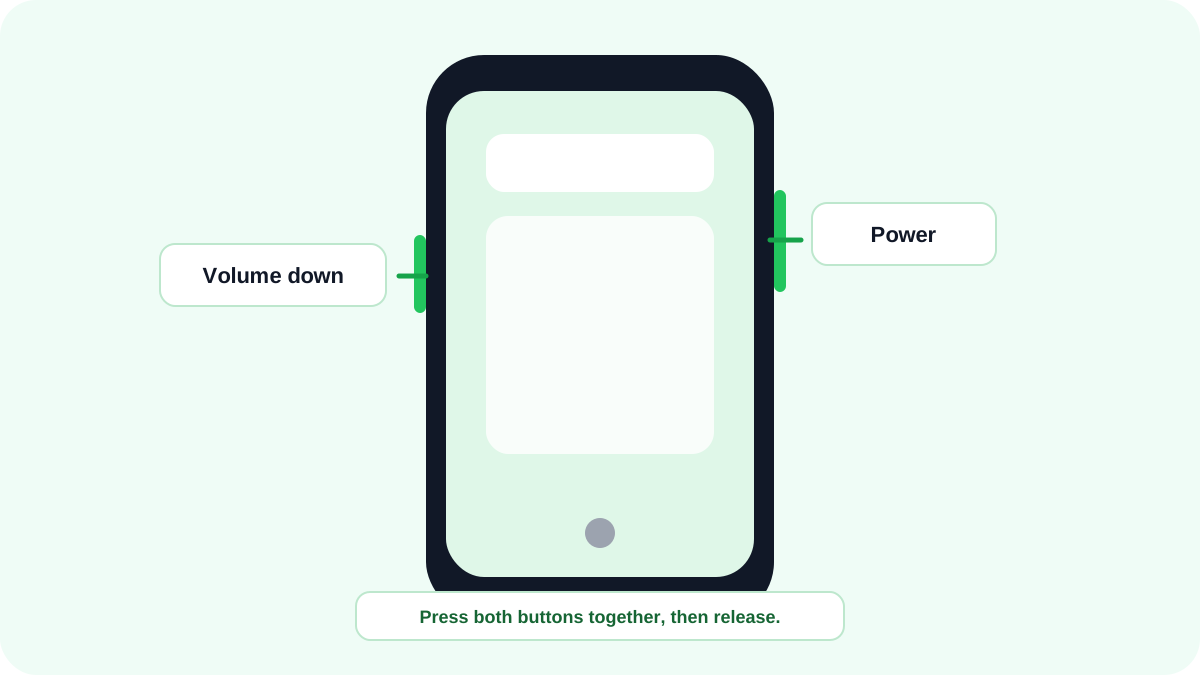
Quick realme screenshot
- Open the content to capture.
- Press PowerVolume Down together.
- Release once the preview/animation appears.
- Open the preview to crop, annotate, share or continue into a scrolling capture when available.
Three finger screenshot on realme UI
realme UI has supported a three finger downward screenshot gesture. On supported versions you can enable it in the screenshot/gesture settings. Some versions also let a three finger press and drag select part of the screen rather than always capturing everything.
Assistive Ball and no button capture
Some realme UI versions include Assistive Ball controls that can expose a Screenshot action. This is useful when a hardware button is damaged or awkward to press. Availability and menu placement depend on realme UI version, so use Settings search if you cannot find the feature by name.
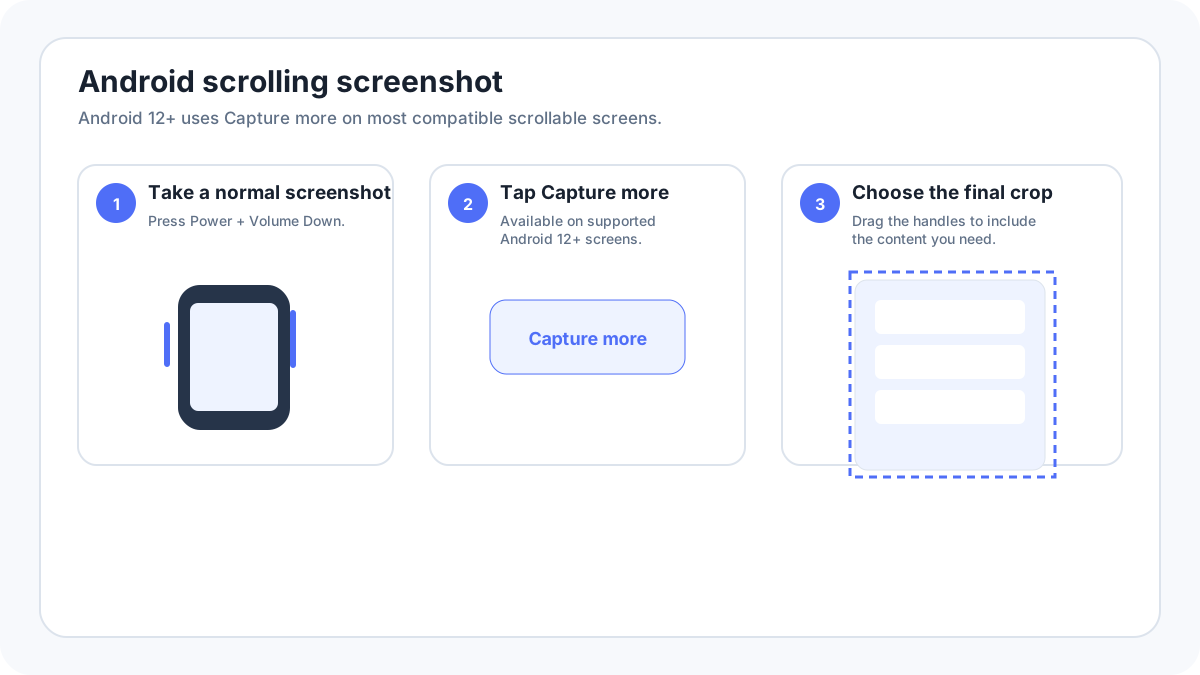
Scrolling screenshot on realme
After the first capture, use the scrolling/long screenshot action when it appears. Continue until the required content is included, then stop and save. It will not work on every app because some screens are not technically scrollable or intentionally prevent capture.
Where realme screenshots are saved?
Screenshots are normally available in Photos/Gallery under Screenshots. If you use cloud backup, the screenshot may later appear across devices, but first check the local Gallery and recent images.
realme screenshot not working
- Use PowerVolume Down to confirm the core screenshot function works.
- Check that a three finger gesture is enabled before relying on it.
- Remove a case temporarily if it prevents simultaneous button presses.
- Check storage space if screenshots appear briefly but do not remain available.
- If one secure app alone blocks capture, use that app’s supported export/share method instead.
realme model searches
Models such as realme 5, realme C series and realme X series may receive separate search phrases, but publishing cloned pages for each model would add little value when the same screenshot tools apply. This guide consolidates those variants and explains the version differences that actually matter.