
How to Record Your Screen on Mac?
Record the entire Mac screen, a selected portion or supported window with Shift Command 5 and control save, audio and pointer options.
macOS includes screen recording inside the Screenshot app. Press ShiftCommand5 to open the toolbar, then choose the recording option that matches what you want to show.
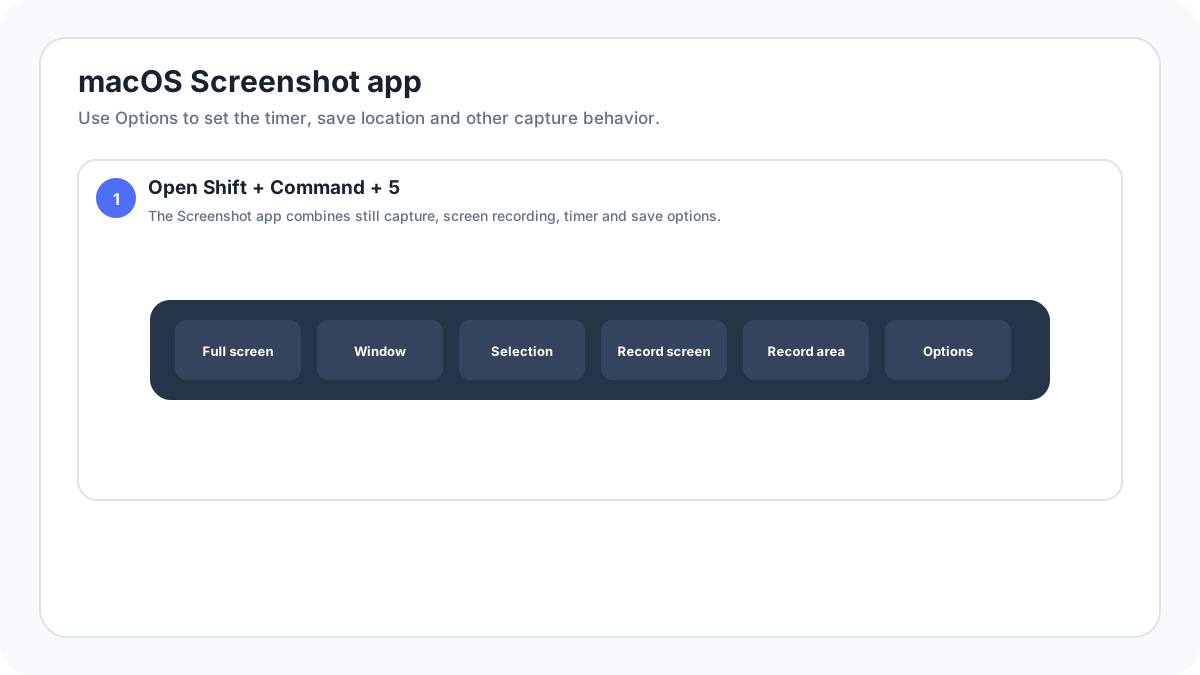
How do you record the entire Mac screen?
- Press ShiftCommand5.
- Choose the control for recording the entire screen.
- Open Options and review the save location, timer and microphone settings.
- Click Record.
- Use the stop control in the menu bar when you are finished.
How do you record only part of the screen?
Choose Record Selected Portion, move and resize the frame around the exact area you want, then start the recording. This is better for tutorials because it avoids exposing unrelated windows, notifications or a second monitor.
Can Mac record one selected window?
Apple’s current guidance notes a selected window recording option in macOS Tahoe 26 or later. On earlier versions, record a selected portion around the window if you do not want the entire display.
How do you include your voice or microphone?
Open Options before recording and choose a microphone when available. Test the microphone first if the narration matters. Be careful not to capture private conversations or background audio, and follow local consent requirements when other people can be heard.
Where are Mac screen recordings saved?
The save location is controlled through the Screenshot app Options. If you cannot find a recording, open ShiftCommand5, check Options, and confirm the current destination. Also check that the Mac had enough free storage for the recording.
How do you stop recording?
Use the stop control in the macOS menu bar. After the recording ends, macOS can show a thumbnail so you can review or share it. Do not close the Mac or force quit the capture workflow until the file has finished saving.
Screen recording privacy checklist
- Close private apps and browser tabs before recording.
- Turn off sensitive notifications if they can appear during the session.
- Record the smallest region necessary.
- Review the complete video before uploading it.
- Keep recordings short when a screenshot would explain the same issue more clearly.
Troubleshooting
- If ShiftCommand5 does nothing, open Screenshot from Applications › Utilities or Spotlight.
- Check Screen Recording permissions if an app based workflow cannot capture the screen.
- Confirm the save destination and available storage.
- Restart the Screenshot app or Mac if the recording controls stop responding.
Related guides
Verification source: Apple Support: How to record the screen on Mac. Interface wording can vary slightly by OS build, manufacturer and keyboard layout.