
How to Take a Scrolling Screenshot on Mac?
Capture a long webpage or document on Mac with browser full page tools, PDF export or careful stitched captures.
macOS does not provide one universal scrolling screenshot button for every app. The best method depends on what you are capturing. For a webpage, use a browser full page feature when possible. For a document, PDF export is often cleaner. Use stitched screenshots only when the app has no better option.
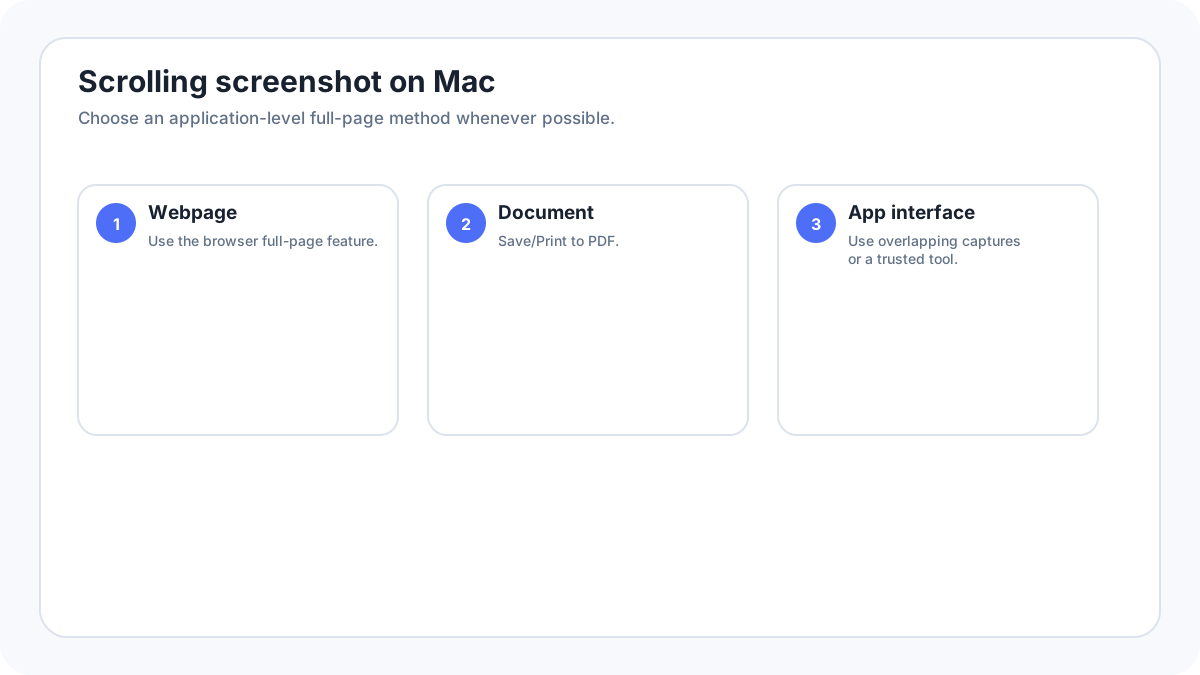
Method 1: capture a full webpage in the browser
If the browser includes a full page screenshot feature, use it because it can capture the webpage content beyond the visible viewport in one image. Firefox has a direct full page screenshot workflow. Other browsers can use developer or page capture tools depending on version.
Method 2: save the webpage or document as PDF
When the goal is to preserve a long article, receipt or document rather than create one extremely tall image, PDF can be more readable. Use the browser or app Print command and save to PDF when available, then share the document instead of a stitched image.
Method 3: make overlapping screenshots and stitch them
- Take the first screenshot with a small amount of content near the bottom that will also appear in the next screenshot.
- Scroll down without changing page width or zoom.
- Take the next screenshot with a clear overlap.
- Repeat only as many times as necessary.
- Combine the images in an editor and align the overlapping area carefully.
- Review the final result for duplicated or missing lines.
Why can stitched screenshots look wrong?
Sticky headers, animated elements, lazy loaded images and changing timestamps can create duplicates or gaps. A page can also reflow if the window width changes. Keep the browser width fixed and prefer a real full page capture when accuracy matters.
Can ShiftCommand5 take a scrolling screenshot?
ShiftCommand5 is excellent for visible screen capture and screen recording, but it is not a universal automatic long page stitching control for every Mac app. Use the application or browser method that understands the scrollable content.
Privacy and readability
A long capture can include information far below the section you originally intended to share. Review the whole image and redact private details. If the result is extremely tall, a PDF or several numbered screenshots can be easier for the reader than one compressed image.
Troubleshooting
- If a full page option is missing, check whether the browser or app supports it.
- If a page loads more content while scrolling, wait for each section to finish loading before capturing.
- If the final image is too wide or text is tiny, keep the source at its normal size instead of forcing it onto one narrow page.
- For protected content, use the app’s official export or download function.